Permissions
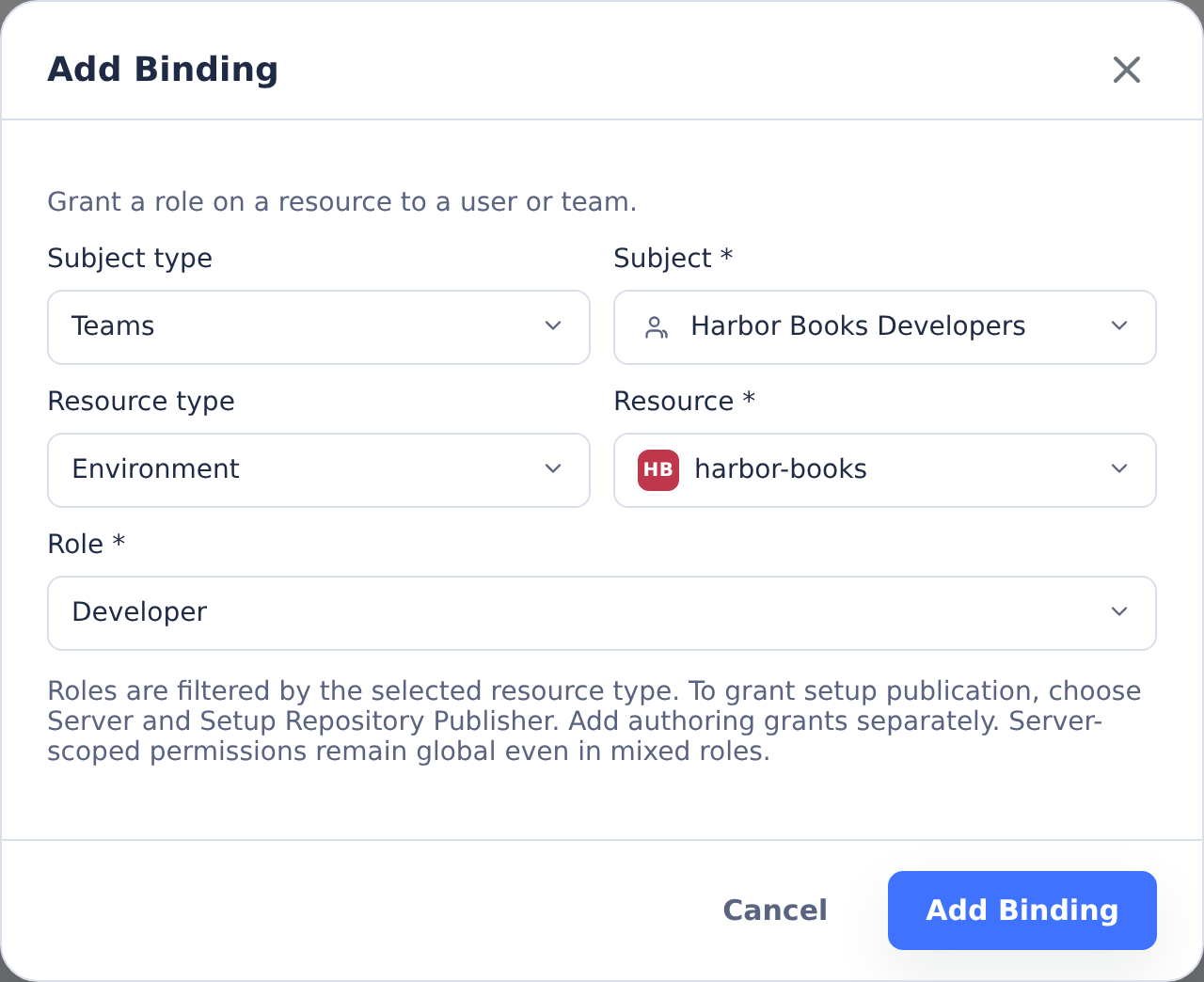
CoderFlow uses scoped role-based access control. A role is a named set of permission strings, and a binding grants that role to a user or team on a specific resource.
Use this page when you need to answer questions like:
- Who can run tasks in an environment?
- Why can this user see one environment but not another?
- How do I grant one extra capability without making someone a Server Admin?
- Which predefined role should I bind to a team?
For day-to-day user and team management, start with People & Access. This page goes deeper into the binding model and permission strings.
The Binding Model
Every access grant has three parts:
subject -> resource -> role
| Part | Meaning | Examples |
|---|---|---|
| Subject | The principal receiving access | A user or a team |
| Resource | The thing access applies to | An environment, team, or the server |
| Role | The permission set granted on that resource | Viewer, Developer, Environment Admin, Team Admin, Server Admin, or a custom role |
Team membership is additive. A user gets the union of direct user bindings and bindings granted through every team they belong to.
Resource Scopes
Bindings can target three resource types.
| Resource type | What it controls | Common roles |
|---|---|---|
| Environment | Tasks, deployments, environment settings, secrets, builds, environment access, and IT requests | Viewer, Developer, Environment Admin, Request Submitter, IT Request Agent |
| Team | Team lifecycle and team membership | Team Admin |
| Server | Server-wide administration | Server Admin, Setup Repository Publisher |
Environment and team bindings normally target a specific resource. The data
model also supports * as a wildcard resource ID for all environments or all
teams. Server bindings do not use a resource ID.
Permission scope comes from the permission string, not from the page where you
grant it. For example, tasks:create is environment-scoped, while
users:create is server-scoped. Server-scoped permissions can appear in an
environment or team role; they are still enforced as server-wide capabilities.
This is why the Developer role can include jira:read_and_comment and the Team
Admin role can include users:create.
People & Access Pages
Open Administration -> People & Access to manage the model.
- Users creates and edits users, resets passwords, and opens per-user access controls.
- Teams manages team membership and team-level access.
- Roles shows predefined and custom role definitions. This page is available to Server Admins only, who can create, edit, and delete custom roles from it.
- Access shows bindings across subjects, resources, and roles. Users with delegated access-management permissions see the bindings they can manage; Server Admins see all bindings.
The Roles page is intentionally separate from the Users page. Roles define capability sets. Bindings decide who receives those capability sets and where.
Comment @-mention autocomplete does not use the user directory. It lists the
people who can view the task or objective being discussed, so anyone who can
view an item can mention teammates on it without directory access. The list
shows only names, usernames and avatars. The full user directory stays behind
Server Admin access, before the endpoint-level users:view check runs. If a
teammate is missing from the mention dropdown, they cannot view that item:
review their binding on its environment, or tasks:view_any for a private
task. A task shared view only lists everyone with tasks:view on its
environment. See @-Mentions in comments.
Predefined Roles
CoderFlow ships eight predefined roles. They are seeded by the server, kept in sync on startup, and cannot be edited or deleted, also not through the API.
Viewer
Read-only environment access.
Permissions:
tasks:viewenvironments:viewenvironments:view_detailsteams:viewdeployments:viewskills:view
Use Viewer for people who need to follow task progress, inspect results, or
review deployment history without starting work. A Viewer reads other people's
shared tasks, and tasks shared view only, on their view-only page: the
conversation and results, with secret values the server knows shown as
[redacted], but no files, logs, tool output, terminal or export (see
Task Sharing and Task Permissions).
Viewers can also keep tasks
and objectives on their own Pinned list: pinning someone else's item changes
nothing on it, so view access is enough (see
Your Own List).
Developer
Standard environment access for creating and running tasks.
Permissions:
tasks:viewtasks:createtasks:changetasks:executetasks:deletetasks:approveautomations:useenvironments:viewenvironments:view_detailsteams:viewcontainers:shelldeployments:viewdeployments:executeskills:viewjira:read_and_commentqa:access
Use Developer for users who should create tasks, run agents, use terminals, approve task changes, create personal automations, and run deployment profiles in the environments where they are bound.
containers:shell opens terminals in the environment's containers, and the
terminal and browser VS Code of its interactive containers (started with
Terminal (New Container), VS Code (New Container) or coder start).
Interactive containers have no owner: everyone with containers:shell in the
environment can open them. Ask CoderFlow
needs it too: it lists, inspects and offers terminal or VS Code buttons only for
interactive containers in environments where you have containers:shell.
Environment Admin
Full environment administration for bound environments.
Permissions:
tasks:viewtasks:view_anytasks:createtasks:changetasks:change_anytasks:executetasks:execute_anytasks:deletetasks:delete_anytasks:approvetasks:approve_anytasks:comment_delete_anyautomations:useautomations:manageenvironments:manage_accessenvironments:viewenvironments:view_detailsteams:viewenvironments:manageenvironments:buildenvironments:filesenvironments:gitenvironments:secretsenvironments:mcp-serversenvironments:instructionsenvironments:templatescontainers:shelldeployments:viewdeployments:executedeployments:manageskills:viewskills:task-editjira:read_and_commentqa:accessenvironments:ibmi_import
Use Environment Admin for owners of an environment. They can change environment configuration, manage secrets and build files, manage deployment profiles, and grant environment access to other users or teams.
environments:manage also covers the environment's external resources: its
External Resources tab lists what the environment's containers registered
for deletion, with Delete now, Retry and Forget (see
External Resources).
automations:manage lets an Environment Admin create and operate shared
environment automations. For another user's personal automation, it permits
inspection, history access, disabling, and deletion, but not editing, enabling,
or running it as that user. These cross-user operations are currently available
through the automation API, not the personal Profile Settings -> Automations view in the web UI.
Team Admin
Team administration and onboarding.
Permissions:
teams:manageteams:manage_membershipteams:viewusers:viewusers:create
Use Team Admin when someone should manage team lifecycle and membership without receiving full server administration. Team Admin does not grant task or environment access by itself; grant those with separate environment bindings.
Current builds still expose the full user-list and user-create routes only to
Server Admins, even though the Team Admin permission catalog includes
users:view and users:create. Treat new-user creation and global user search
as Server Admin flows; use Team Admin for team lifecycle and membership work on
existing users.
Request Submitter
Submit and follow your own IT requests in Portal.
Permissions:
portal:accessrequests:createrequests:viewrequests:comment
Use Request Submitter for business users who send requests to IT from Portal.
They see only their own requests, under My Requests (see
My Requests). The role doesn't include portal:data or
portal:apps; grant those separately when people also need Portal's reports,
Ask conversations or applications (see
Portal Setup).
IT Request Agent
Read and manage an environment's IT request queue.
Permissions:
requests:createrequests:viewrequests:commentrequests:view_anyrequests:manage
Use IT Request Agent for IT staff who work the queue on the Requests page.
They can read every request in the environment, including internal notes and
priority, and can reply, assign, set priority, add internal notes and change a
request's status. Only people with both requests:view_any and
requests:manage can be assigned a request. The role grants no task
permissions: launching a task from a request also needs tasks:create in the
environment where the task runs, for example through Developer. Environment
Admin already includes every requests: permission.
Setup Repository Publisher
Review, pull and publish the shared setup repository.
Permissions:
setup:git
This is a server-scoped role. It grants only setup:git; editing setup files
and assigning skills need separate grants. Publishing pushes all pending
commits, including other people's; see
Setup repository Git.
Server Admin
Full system access across all resources.
Permissions:
*
Use Server Admin sparingly. A Server Admin can manage settings, users, teams, roles, bindings, environments, provider authentication, logs, and every task. The first user on a fresh server is automatically granted a Server Admin binding so the installation is not left without an administrator.
Custom Roles
Create a custom role when a predefined role is close but not exact.
- Open Administration -> People & Access -> Roles.
- Click Create Role.
- Give the role a specific name, such as
Developer + Private-task Review. - Select the permission strings to include.
- Save the role.
- Open Access and bind the role to the user or team on the intended resource.
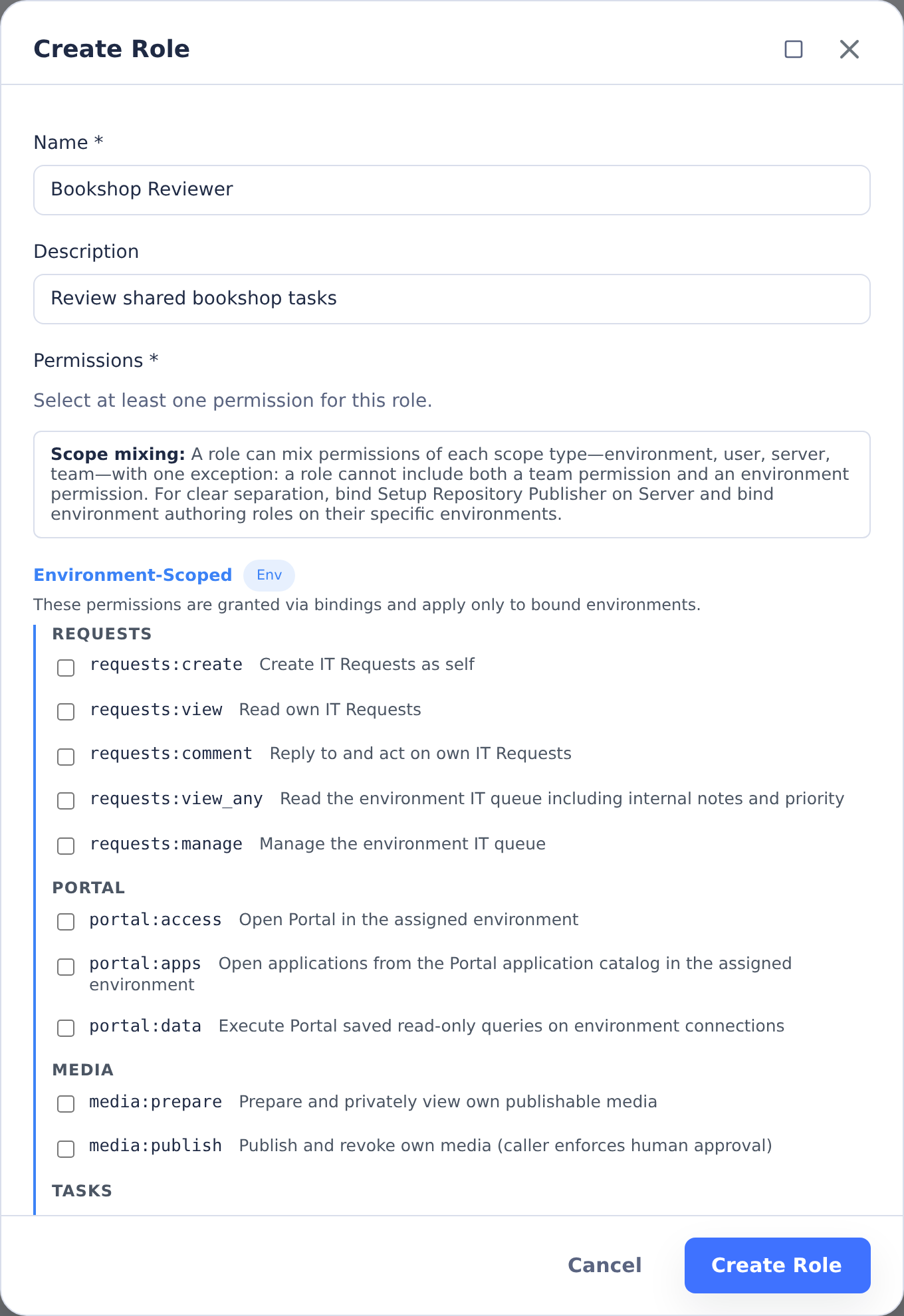
Select only the permissions the role needs, then bind it to the intended resource.
Custom roles must use valid permission strings from the permission catalog. A role cannot mix environment-scoped and team-scoped permissions. Server-scoped permissions can be combined with either environment or team permissions.
The binding API prevents privilege escalation. A delegated Environment Admin can grant a role only when the role's permissions are a subset of their own effective permissions on that environment. Server Admins can grant any role.
Task Sharing and Task Permissions
What a task permission lets someone do with another person's task depends on the task's sharing state. A task has one of three, chosen by its owner in More actions → Sharing... on the task page (see Sharing Tasks):
| The task is | People with the base permissions (tasks:view, tasks:change, tasks:execute, tasks:approve) in its environment | People with the matching _any permission |
|---|---|---|
| Shared | See it in lists and use it as far as each permission allows. Someone whose only task permission there is tasks:view reads it on the view-only page, as for Shared (view only) | The same |
| Shared (view only) | With tasks:view: see it in lists, and read its redacted conversation and results on the view-only page. They can post comments and keep their own pin. Nothing else: their other base permissions do not apply to it | Full access, as on a private task |
| Private | Cannot see it or open it | Full access |
View only widens one rule: who sees the task in lists. Everything else about
the task stays private. A viewer gets a reduced record of the task (its status,
dates, owner and a name with secret values removed) and one read of its
conversation, summary, saved changes, test results and comments, with secret
values the server knows replaced by [redacted]. Every other request about the
task is refused for them: follow-ups, files, logs, the terminal, VS Code, the
app server, export, fork, resubmit, judging and approval. Tool calls and their
output, logs, files, attachments and screenshots are never sent to a viewer.
The _any permissions are not limited by view only. Someone with
tasks:view_any reads the whole task, and someone with tasks:execute_any can
still open its terminal, exactly as on a private task. Grant them accordingly.
Shared tasks and people who can only view
A shared task's container holds its owner's credentials. Someone whose only
task permission in the environment is tasks:view (the Viewer role, or a
custom role with tasks:view and no other task permission than
tasks:create) gets the view-only page of someone else's shared task, exactly
as for a task shared view only: they can read the redacted conversation and
results, post comments, @mention teammates and keep their own pin, and every
other request about the task is refused, including its files, logs, stream,
debug stream, export, attachments, terminal and judging it. Their tile and
page say View only. MCP and Ask list only its reduced record, and their
task tools answer as for a task they cannot open.
Anyone who also holds tasks:change, tasks:execute, tasks:approve or
tasks:delete in the environment, or any _any task permission there, and
the task's owner, keep the full task. Private tasks and tasks shared view only
are not affected.
A task started before CoderFlow kept a record of the credentials it was given cannot have its conversation checked for them: its view-only page says so and shows the conversation and results only after its owner chooses Shared (view only) in Sharing... once, which records them, and then Shared again. Until then its tile shows the name Shared task, and its comments and @mention suggestions are not available to them either, because a credential pasted into a comment could not be recognized without that record. They can still keep their own pin, and they still hear when someone @mentions them.
Everywhere else, such a teammate is treated as for a task shared view only: the task is left out of My Work's time entries and report, an IT request's linked work does not show it, Git History shows no task for it, and the image check and container lists leave out its container. The support dialog adds nothing from the task, and its external resources and device activity are not shown to them. A notification that reaches them names the task by its view-only name only.
Pages that show details copied from a task follow the task's own access, for every task, private and view-only ones included: an automation's run history and last run, the documentation publishing status, environment lessons, external resources, Microsoft 365 mail activity, your time entries and IBM i deployment history. Someone who may not open the task sees the record without those details, for example an automation run's status and time but not its error, or a lesson's kind but not its text, and cannot apply such a lesson.
What Shared means
Shared means "trusted to act as the owner". With tasks:change a teammate can
send follow-ups, and the agent acts with the owner's credentials. With
tasks:execute they can run commands (/exec), open VS Code and the App
Server, and with containers:shell the terminal, all with the owner's
credentials. That is why the Sharing dialog warns: "People who can run commands
or direct the agent in this shared task may be able to read credentials
available to the task and use its connected accounts, including your personal
credentials. Share control only with people you trust with that access." To
show your work without that, choose Shared (view only) (see
Sharing Tasks).
Changing a task's sharing, in any direction, needs the task's owner with
tasks:change, or tasks:change_any on its environment. A person with
tasks:change who does not own the task cannot change its sharing, even while
it is shared.
The owner of a task, not an administrator, decides whether it is shared view only. There is no environment default or launcher option for it: new tasks start private or shared as before, and a child task created while its parent is view only is private. The CLI, the VS Code extension and MCP treat a view-only task as private.
Redaction has limits, which Limits of redaction lists in full. In short: it replaces secret values the server knows and their common encoded forms, and it cannot recognize a value created inside the container or typed into a prompt, a value shorter than six characters, or a secret in an image.
Example: Add Private-task Review
There is no standalone tasks:judge permission in the current catalog. Judge
work uses the same task permissions as other task flows.
Shared tasks in the same environment can be viewed and judged with the base
tasks:view and tasks:create permissions together with another task
permission there, such as tasks:approve: with tasks:view and tasks:create
alone, someone else's shared task is read on its view-only page and cannot be
judged. A task shared view only can be read with tasks:view, but its viewers
cannot judge it. If a Developer also needs to review
private or locked tasks created by other users in one environment, or to open
view-only tasks in full, without receiving full Environment Admin access:
- Create a custom role based on Developer.
- Add
tasks:view_any. - Keep the other Developer permissions unchanged.
- Bind that custom role to the user or team on the target environment.
Add only the _any permissions the person actually needs:
tasks:view_anylets them view private or locked tasks owned by other users.tasks:change_anylets them modify private or locked tasks owned by other users.tasks:execute_anylets them run or interrupt private or locked task operations owned by other users.tasks:approve_anylets them approve private or locked task changes owned by other users.tasks:delete_anylets them delete tasks owned by other users.
For most reviewers, start with tasks:view_any only.
A judge or review of a private task is private too: it holds copies of every
evaluated task's responses and changes, so only its creator and people with
tasks:view_any can open it. This includes judges created earlier, and a judge
becomes private when a task it evaluated is made private or shared view only;
it can't be shared again while that task is private or view only. A judge or
review cannot itself be shared view only. An older judge whose task was deleted, so its
sharing can no longer be checked, is private too. Judges of shared tasks stay
shared.
Someone who can open a judge but not every task it evaluated (for example the judge's creator after losing access to one of those tasks, or an administrator of the judge's environment whose role doesn't reach a task in another environment) sees Review content withheld: the review is shown as "Review" or "Judgment" with its status, but its instructions, responses, changes and recommendation are not shown, and the same holds for task lists, live updates, the API, MCP, exports and notifications. They also can't follow it up, fork, resubmit or export it, open its container, or judge it in turn. A judge of a judge, and a fork of a judge, follow the same rule; a fork or resubmit of a judge of private work is private. When their access to those tasks is restored, the review's content shows again the next time its page refreshes. Updates about such a judge queued on another task, and that task's exports, leave the judge's content out for them too.
People who see only some tasks of a group see counts of those, and not the group's review loop or a winner they can't see.
A judge's feedback is sent into a task automatically (by an auto-review loop or the API) only when everyone who can view that task can open every task the judge evaluated: they must all be in the task's environment and, for a shared task, shared; for a private task, ones its owner can open. Otherwise the feedback is not sent.
Retrospectives and Lessons
Task retrospectives and the environment's Lessons tab use existing permissions:
| Action | Permission needed |
|---|---|
| Read a task's lessons or copy product feedback | Access to the task and its content, under the normal task visibility rules. |
| Run a retrospective; keep, skip or undo a lesson | tasks:execute, plus task view/content access and the ownership check (tasks:execute_any where needed for someone else's private or locked task). tasks:change alone is not enough. |
| Open the Lessons tab and read its numbers | environments:instructions or environments:manage on that environment, plus environments:view_details to open Environment Management for it. |
| Change the Retrospectives setting | environments:manage on that environment. |
| Accept or reject a proposal | environments:instructions on that environment. |
| Start Apply accepted lessons | environments:instructions and permission to create a task in that environment (tasks:create). |
Opening Environment Management also requires environments:view_details on that environment when changing the Retrospectives setting, accepting or rejecting proposals, or starting Apply accepted lessons from the tab.
The applying task runs as the person who starts it and checks their own permissions for each edit: environments:instructions for instructions, environments:templates for templates, and skills:task-edit with environments:skills for environment-owned skills. See skill permissions for the separate scope of shared skills and setup-repository publication.
Keeping a lesson makes its text and evidence visible to people who can read the environment's Lessons tab. It does not grant them access to the source task; its name and link appear only for people who can view it.
When Access Changes
Removing a binding, changing a role, removing someone from a team, or turning an environment into a draft takes effect on pages that are already open:
- Live task board updates (status changes, new tasks, edits), comments, objective change notices and team canvas updates stop at once for the items the person can no longer see, without a reload. Access granted while a page is open applies after the page reloads.
- An open task page stops streaming the agent's activity, logs, deployment output and test output within a few seconds.
- A task's VS Code and App Server previews check access on every request: they
need
tasks:executeon the task (for a private or view-only task, its owner ortasks:execute_any). Already-open VS Code, App Server and terminal connections close when their original access check no longer passes, including a task becoming private or view only, or a judge's source becoming unreadable. QA connections close whenqa:accessor access to their configured destination is removed. - An interactive container's browser VS Code checks
containers:shellin the container's environment on every request, including its WebSocket connections, and its terminals are checked the same way. Removing that permission closes an editor or terminal that is already open. - An open server log tail closes when its user loses Server Admin access.
- Deleting a user ends their task-board and task-output streams and their open container, QA and server-log connections. Their browser session and personal API keys can no longer authenticate.
Changes to bindings, roles or teams made outside the server, for example by editing their data files by hand, are picked up within a minute.
Image build output can be read by people who can build that environment
(environments:build); base image build output needs server:build, or
environments:build on some environment. An open build output view stops
within a few seconds when that permission is removed.
Deleting a user removes their browser push subscriptions, and no further completion notifications are sent to them.
Access Binding Examples
Grant a team Developer access to one environment:
{
  "subject_type": "team",
  "subject_id": "team_app_devs",
  "role_id": "role_predefined_developer",
  "resource_type": "environment",
  "resource_id": "app"
}
Grant one user Environment Admin access to one environment:
{
  "subject_type": "user",
  "subject_id": "user_alice",
  "role_id": "role_predefined_env_admin",
  "resource_type": "environment",
  "resource_id": "app"
}
Grant one user Team Admin access to one team:
{
  "subject_type": "user",
  "subject_id": "user_sam",
  "role_id": "role_predefined_team_admin",
  "resource_type": "team",
  "resource_id": "team_app_devs"
}
Grant one user Server Admin access:
{
  "subject_type": "user",
  "subject_id": "user_owner",
  "role_id": "role_predefined_server_admin",
  "resource_type": "server"
}
The UI handles these shapes for you. The JSON examples are useful when reading API responses or debugging access data.
Permission Resolution
When a request needs permission, CoderFlow resolves access in this order:
- Identify the permission's scope from the permission catalog.
- Collect bindings for the user and for every team the user belongs to.
- For environment-scoped checks, include bindings for the target environment, wildcard environment bindings, and Server Admin bindings.
- For team-scoped checks, include bindings for the target team, wildcard team bindings, and Server Admin bindings.
- For server-scoped checks, inspect all user and team bindings for server-scoped permissions.
- Union all permissions from matching roles.
- Grant access when the union contains the required permission, a category
wildcard such as
tasks:*, or the global wildcard*.
Draft and
disabled environments add one
rule to environment-scoped checks: when the target environment is a draft or
disabled and the user's matching bindings do not grant environments:manage
on it, CoderFlow ignores all of those bindings. The environment is then hidden
and unusable for that user, exactly as if they had no binding to it, even
through a wildcard environment binding. A disabled environment also refuses
new work from everyone, regardless of permissions.
The /auth/me response returns the resolved permission map used by the web UI:
{
  "permissions": {
    "server": ["settings:view"],
    "environments": {
      "app": ["tasks:create", "tasks:view"]
    },
    "teams": {
      "team_app_devs": ["teams:manage_membership"]
    }
  }
}
Server Admins are represented as:
{
  "permissions": {
    "server": ["*"],
    "environments": {},
    "teams": {}
  }
}
Troubleshooting
A user can log in but sees no environments
They have a valid account but no environment binding, no team membership with an environment binding, and no Server Admin binding. Add them to a team or create a direct environment binding.
A Team Admin cannot run tasks
Team Admin manages teams only. Add a separate Viewer, Developer, or custom environment binding for the environment where they need task access.
An Environment Admin cannot create a custom role
Custom role management is a server-level operation. It needs settings:manage
on the server: the Roles page is for Server Admins, and someone else with
settings:manage changes custom roles through the API, adding only
permissions they hold where the role is granted. See
Users and Roles.
A delegated admin cannot assign a role
The role may contain permissions the delegated admin does not have. Create a smaller custom role or ask a Server Admin to make the binding.
A teammate sees a task's tile but cannot reply, open files or approve
The task is shared view only, or it is shared and the teammate's only task
permission in its environment is tasks:view: its tile and task page show a
View only badge. For a task shared view only, their base permissions do not
apply to it; its owner can switch it to Shared in More actions →
Sharing..., or the person needs the matching _any permission on the
environment. For a shared task, the person needs a task permission beyond
tasks:view there, such as Developer's.
A teammate's view-only page says the task is no longer shared with them
The owner made the task private, or the person lost tasks:view on its
environment. The page removes the conversation and results as soon as it
notices, within about 15 seconds while it is visible.
A view-only page says the conversation and results are not available
The task is shared and was started before CoderFlow kept a record of the credentials given to its container. Its owner can choose Shared (view only) in Sharing... once, which records them, and then Shared again.
An API key authenticates but an operation returns Forbidden
API keys authenticate as their owning user. Check that user's resolved permissions and bindings. See API Keys.
Setup repository Git
setup:git is a server-scoped permission, available through the predefined
Setup Repository Publisher role or a custom role. It grants repository-wide
status/diff review, pull, and publication of pending setup-repository commits.
A push includes all pending commits, including other authors' commits and
commits to environment configuration. It is not limited to the selected skill.
Publishing through an MCP client needs the same permission but commits and pushes only the files
you select, and refuses when other unpublished commits would be pushed too.
Ask CoderFlow does not publish: it points
you to Commit & Push… or Push to Git on the Environments page.
environments:git on an environment (included in Environment Admin) also
lets a user commit, pull and push the setup repository from the
Environments page for that environment, without setup:git:
- A commit includes only files under that environment's folder
(
environments/<name>/). Each file still needs the file-scope authority below, so the environment's own skills also needenvironments:skills. - Status, diffs and generated commit messages show only that folder.
- Pull and push act on the whole branch, as they do for
setup:git. A push publishes all pending commits, including other authors' commits and other environments' changes.
setup:git is still required for repository-wide status and diff review,
discarding changes, Link Remote, pull and push on the Skills page, and
publishing through Ask CoderFlow or an MCP client.
File authoring and assignment remain separate:
- Shared skill authoring and scoped local commits require
skills:manage. - Environment-owned skill authoring requires
environments:view_detailsandenvironments:skillson the owning environment. This narrower grant also allows enabling or disabling that environment's own skills. - Changing shared skill assignments requires
environments:manageon the target environment. Task editing additionally requiresskills:task-editthere; task editing and publication do not grant shared assignment rights. - Selecting local files for repository commits, discard, or explicit conflict
choices still requires file-scope authority:
skills:managefor shared skills,environments:skillsfor environment-owned skills,environments:gitfor other files under that environment, orsettings:managefor setup files outside those directories. settings:setup_repo_historycontinues to govern setup commit history, branch lists, and commit details independently.
Publication does not grant skill CRUD, environment editing, role management, credential management, or Git access to application repositories. GitHub App installation access, personal provider authentication, and branch protection rules still apply. A rejected push preserves a successful local commit; retry Push, using the existing commit, after resolving permission/provider issues.
Upgrade action for administrators
Existing custom roles and bindings are retained. Startup seeds the new
Setup Repository Publisher role without assigning it to anyone. Repeated
startup does not duplicate it or add grants. Existing Server Admin and custom
* grants retain access. A one-time migration adds setup:git to existing
roles with settings:git-providers (including settings:*), because those
roles already authorized server-wide publishing/adoption through Link Remote.
The persisted migration marker prevents later revocations from being undone
and does not give newly created credential-only roles publication access.
Link Remote now requires both permissions. No environment Git grant is
converted to setup:git, including Environment Admin or an all-environments
binding. Those grants commit, pull and push their own environments' files from
the Environments page, as described above. Repository-wide review, discard,
Link Remote, Skills-page pull and push, and Ask CoderFlow or MCP publishing need
Setup Repository Publisher.
In People & Access → Access, add a binding with resource Server, role Setup Repository Publisher, and the intended user or team. Keep the appropriate authoring bindings. Users without the new grant can continue to save and commit permitted skill changes locally; an authorized publisher can publish them later. Environment Admins can also publish their environment's own changes from the Environments page.
Server and environment permissions can coexist in a custom role in this model; server permissions remain global even through an environment binding. Mixing team and environment permissions in one role is prohibited. Separate publisher and authoring roles/bindings are the clearest configuration.