People & Access
CoderFlow uses scoped role-based access control. Administrators manage users, teams, roles, and access bindings from Administration -> People & Access.
For the detailed binding model, permission strings, predefined role contents, and custom-role examples, see Permissions.
First administrator
On a new server with no users, open the one-time setup link printed by the
installer or by coder-server setup-link in the server account's terminal.
It works before licensing. Enter your account details and choose
Create Administrator, then install the license on the License page after
sign-in. See First sign-in for link expiry,
MFA and service installations, or Create Admin User
to create the account directly in the terminal.
After licensing and restart, the setup guide helps you prepare the first environment and add your team.
Roles
Viewer
Read-only environment access. Viewers can inspect tasks, environment details, deployments, and skills where they have an access binding.
Developer
Standard environment access for development work. Developers can create tasks
and work with shared tasks in bound environments. Deleting another user's task
requires a role with tasks:delete_any.
Environment Admin
Full environment administration for bound environments, including secrets, builds, repository access, and environment access bindings.
Team Admin
Team administration. Team Admins can manage team metadata and membership for their team scope. Current builds still keep full user creation and the global user directory behind Server Admin access.
Server Admin
Full system access across all resources.
Tabs
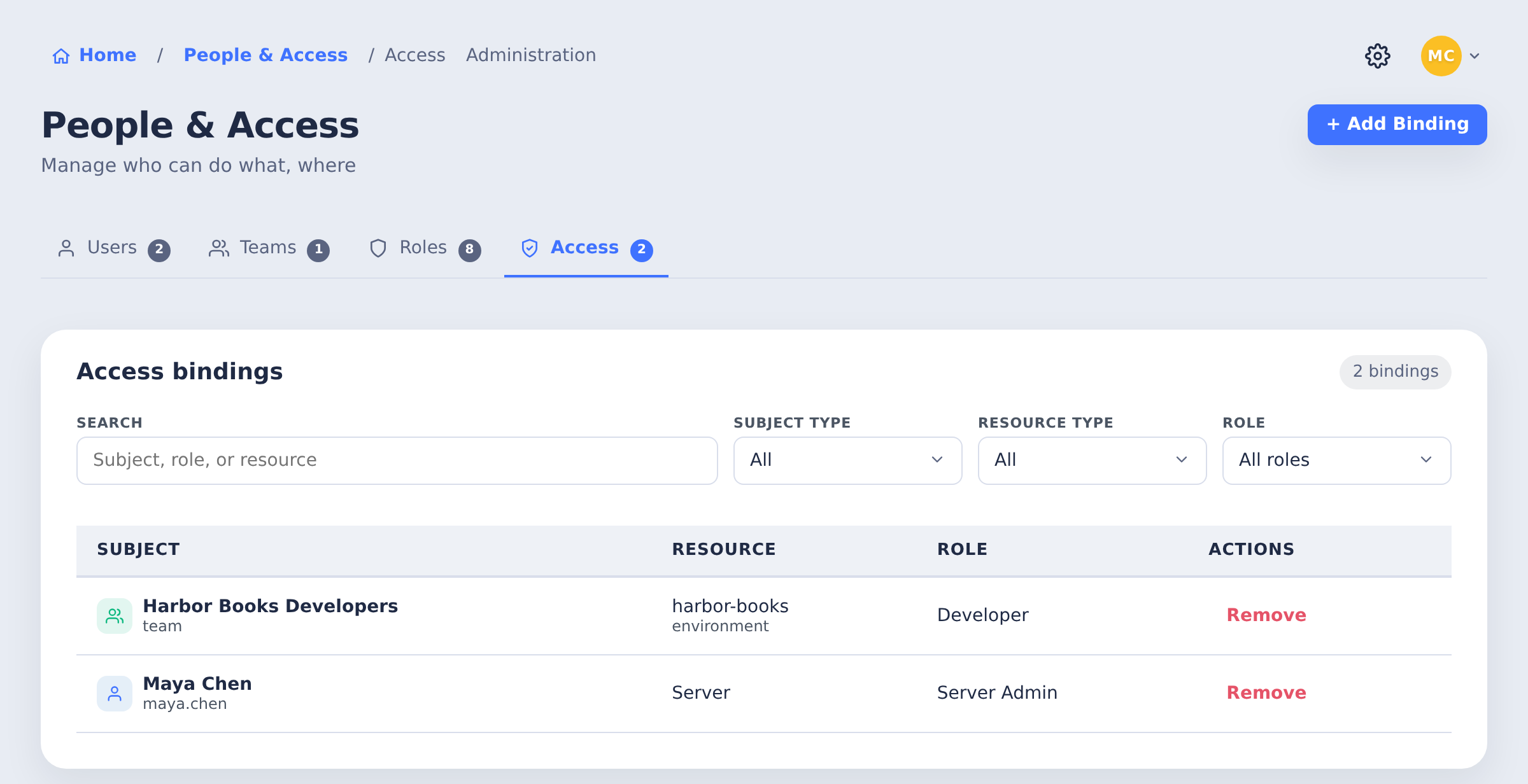
The People & Access page is organized into four tabs:
- Users - Create users, edit profile details, reset passwords, and open per-user access bindings.
- Teams - Create teams, manage team membership, and manage team-level bindings.
- Roles - View and manage role definitions and permissions. This tab is available to Server Admins only.
- Access - Review access bindings across subjects, resources, and roles in one table.
Users
The MFA column shows whether each local user has enrolled.
Only a full Server Admin can create, edit or delete users, also through the API. You cannot edit or delete your own account here: change your details in your profile, and ask another administrator to delete it.
At least one Server Admin must remain. Deleting a user who is the last Server Admin is refused ("Deleting this user would leave no Server Admins. At least one Server Admin must remain."), whether their full access comes from a direct Server Admin role, a team or a custom role that grants every permission. Two deletions at the same moment cannot together remove the last Server Admins: one of them is refused. Turning off a user's Server administrator toggle when that would leave no Server Admin is refused too, before any of their other details change.
Deleting a user ends their open task-board updates, task-output streams, terminal, VS Code, App Server and QA connections, and any server log tail. Their next browser request or WebSocket connection is refused and their session is destroyed; their personal API keys no longer authenticate. Removing access without deleting the user also closes the connections that no longer pass their permission check. Changes made outside the server are checked by a periodic sweep within a minute.
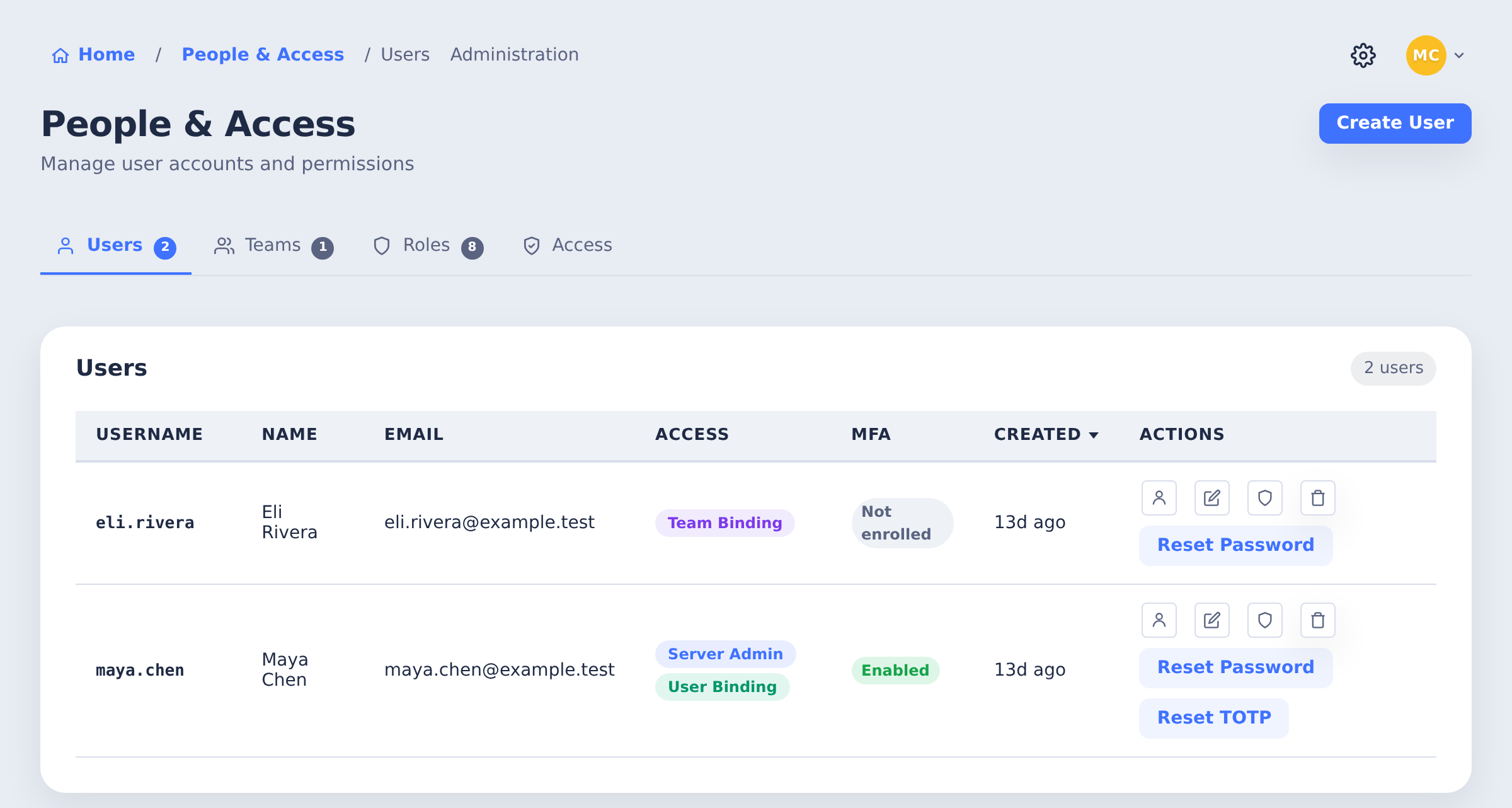
Password setup and reset links
Instead of choosing a password for someone, send them a link to set their own:
- New user: tick Skip password (send setup link to user) when you create the user.
- Existing user: choose Reset Password on their row, then Generate Link.
The Password Setup Link dialog shows the link once, with Copy Link and, when email is configured, Email Link.
- A link expires after 7 days and can be used only once.
- Email Link sends a separate link of its own. Creating a link does not cancel earlier ones; each works until it is used or expires.
- The person opens the link, chooses a password of at least 8 characters on Set Your Password, and is taken to sign in.
Only a full Server Admin can create these links.
Teams
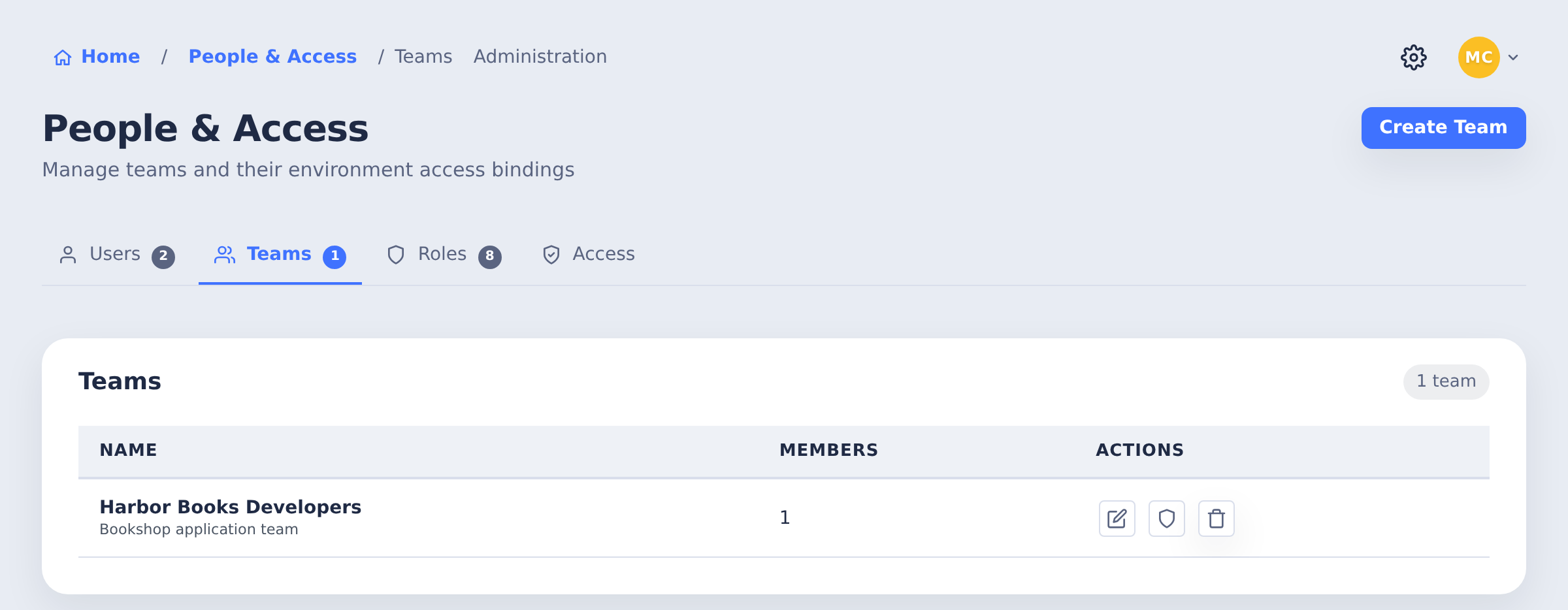
The team row provides controls for membership and access bindings.
Roles
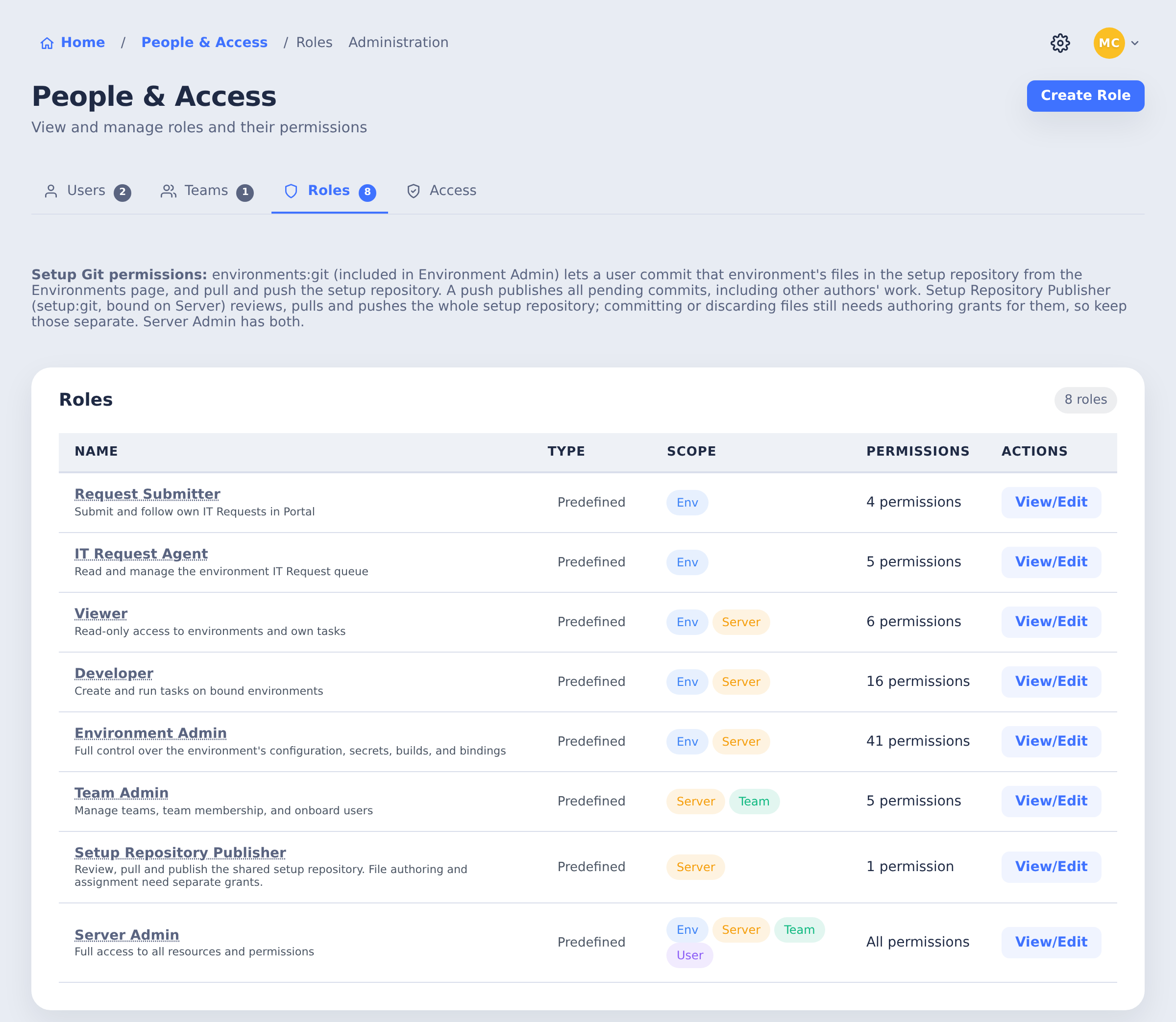
Predefined roles show their permission counts and scopes. Use Create Role for a custom set.
Predefined roles are read-only: they cannot be renamed, edited or deleted, also
not through the API (PUT /roles/:id answers 400 Cannot edit predefined
role: Predefined roles are read-only. Create a custom role instead.). The
Roles tab is shown to Server Admins only; someone with settings:manage
who is not a full Server Admin can change custom roles through the API, under
the same rules. Changing a custom role changes the access of everyone it is granted
to, so someone who is not a full Server Admin may add only permissions they
hold themselves wherever the role is granted; otherwise the change is refused
(403 Cannot assign role: The change adds permissions you do not hold where
the role is granted). Removing permissions, renaming a role and creating a new
one are not limited this way. Creating or changing a role that grants all
permissions (*) still needs a full Server Admin, and a change that would
leave no Server Admin is refused.
Access Bindings
Access bindings connect a subject to a resource with a role:
- Subject - A user or team.
- Resource - An environment, team, or the server.
- Role - The permission set granted on that resource.
Bindings can be managed from the consolidated Access tab, from a user or team row's access binding controls, or from the Access tab on an environment.
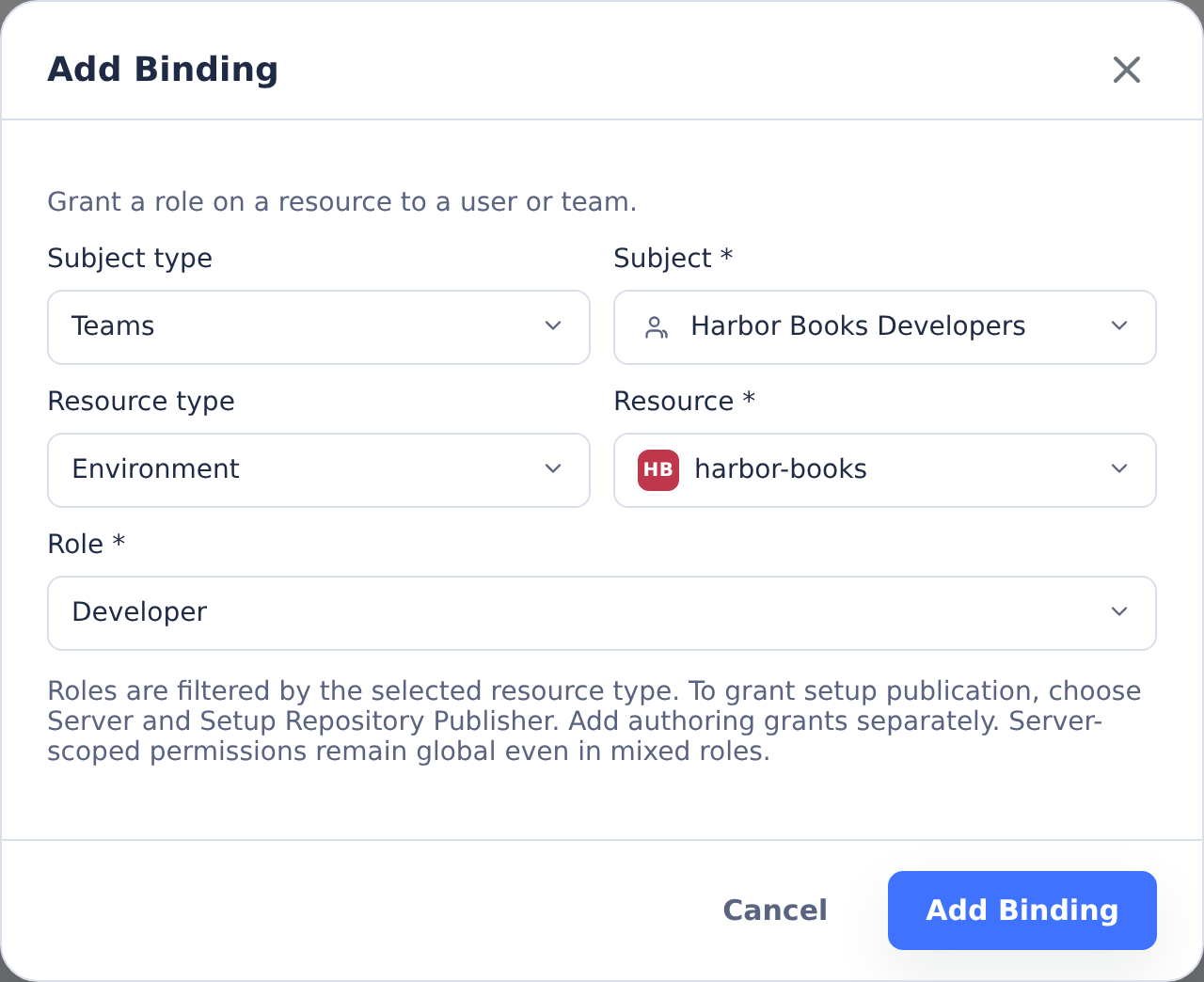
This example grants the Harbor Books Developers team access to the harbor-books environment.
Deleting an environment removes the bindings on it, and a new environment never
inherits bindings from an earlier environment of the same name, however that
one disappeared: creating, importing, cloning or renaming an environment onto a
name first removes any bindings left on it. Bindings on all environments (*)
and server-wide bindings are not affected. See
Deleting Environments.
For initial setup or automation, users and bindings can also be managed through the command-line tools or REST API. The command-line tools do not coordinate with a running server: run them with the server stopped, or check the result here afterwards; see Create Admin User.
With Ask CoderFlow
Ask CoderFlow can read users, teams, roles and bindings and explain why someone has access, but it does not change them. When you ask it to add a user, change a team, edit a role or grant access, it explains how and opens the Users, Teams, Roles or Access tab here, where you make the change yourself. See Changing users, teams, roles and access. External MCP clients and agents running inside tasks cannot make these changes either.
Personal API keys do not grant separate privileges. They authenticate as the owning user, then use the same permissions and bindings described here. See API Keys.