Generate IBM i Build Rules
The Generate IBM i Build Rules tool analyzes IBM i objects—*PGM, *SRVPGM, *FILE (PF, LF, DSPF, PRTF), and *BNDDIR—and produces Rules.mk files, plus any required binding directory (.bnddir) source files, for codermake. Use it to bootstrap a repository's build configuration from existing objects, or to regenerate rules after adding new programs.
No source code is downloaded—only build rules. If you need the sources too, use Import IBM i Sources separately.
Prerequisites
- An administrator has enabled IBM i Source Import on one of the environment's repositories (see Environments). The target repository must also have a Git provider configured so existing
Rules.mkfiles can be fetched for merging and source files can be validated. - Your role includes the IBM i Import permission (included in the Environment Admin role).
- The IBM i system has its SSH daemon running. The tool connects directly over SSH from the CoderFlow server to run object analysis.
- Valid IBM i host, user profile, and password credentials. Credentials are held in server memory for the session only.
- The user profile has authority to install the
objxtool the first time you connect. On first use the tool creates a library (defaultPLOBJX) viaCRTLIB, uploads a save file to that library over SFTP, and restores the tool's programs withRSTOBJ. Subsequent sessions reuse the existing library. The profile therefore needsCRTLIB(or a pre-created library named in the advanced objx Tool Library field with*CHANGEauthority) andRSTOBJauthority. If your profile can't create libraries, ask an administrator to create an empty library for the tool and grant you*CHANGEauthority on it. - The user profile has authority to discover and analyze the objects you want to build rules for—
*USEon the libraries being browsed and*OBJOPRon the objects, plus read authority on the source members the analyzer resolves. Objects the profile can't read are reported as errors in the review step and skipped.
Launching the Tool
From the main task launcher, open the actions menu and choose Generate IBM i Build Rules.... Visibility is gated by the same conditions as Import Sources.
Workflow
Four steps: Connect, Select, Analyze, Review.
1. Connect
Enter host, user, and password. The Advanced section exposes the objx Tool Library (default PLOBJX). If you previously saved a custom library list or a source search library list for this host, it's applied automatically on connect.
2. Select Objects
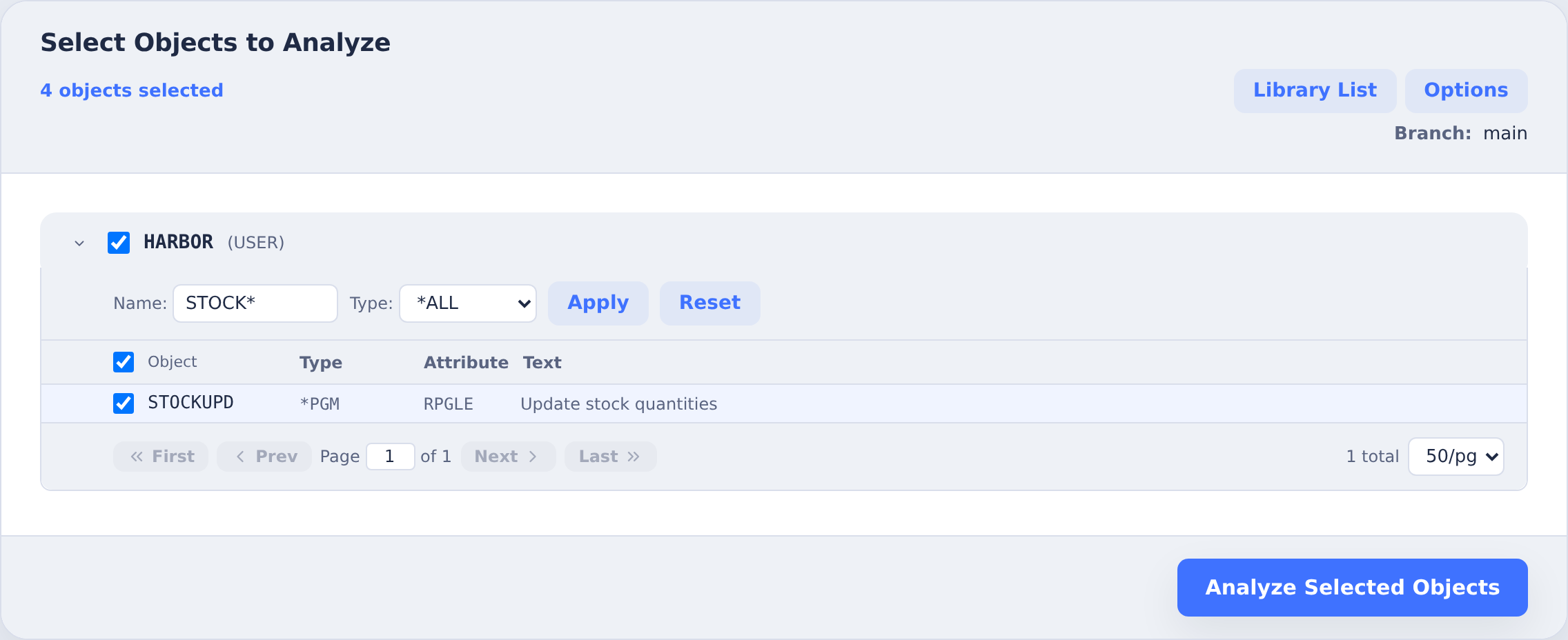
Libraries in your IBM i library list appear as expandable rows. Expanding a library fetches its objects page-by-page with filters for name pattern and object type (*ALL, *PGM, *SRVPGM, *FILE, *BNDDIR). IBM-supplied Q* libraries are omitted.
Selection is additive across filter passes—check-all adds every object matching the current filter to the selection, so you can build it up over multiple passes (A* → check, B* → check, result is A∪B). Changing a filter never clears selections.
The card header provides:
- Library List — customize the user portion of the library list for this session, highest priority first. You can paste several libraries at once, separated by new lines, spaces or commas, then reorder, rename or remove them. An empty list means the library list from your job description (JOBD). When you choose Apply list, the list is validated against the IBM i before it takes effect; if the IBM i refuses it, the dialog stays open with the error. The list is saved on the server per host.
- Options — analysis and rule generation options (see below), plus the shared Source Type Mappings editor.
- Branch — when the repo allows branch selection, this chooses which branch existing
Rules.mkfiles are merged from and which branch the resulting task runs on.
The global count N objects selected sums across libraries.
To reuse a selection, choose Save Profile in Review, then select that profile on Connect in a later session. Profiles are saved per environment.
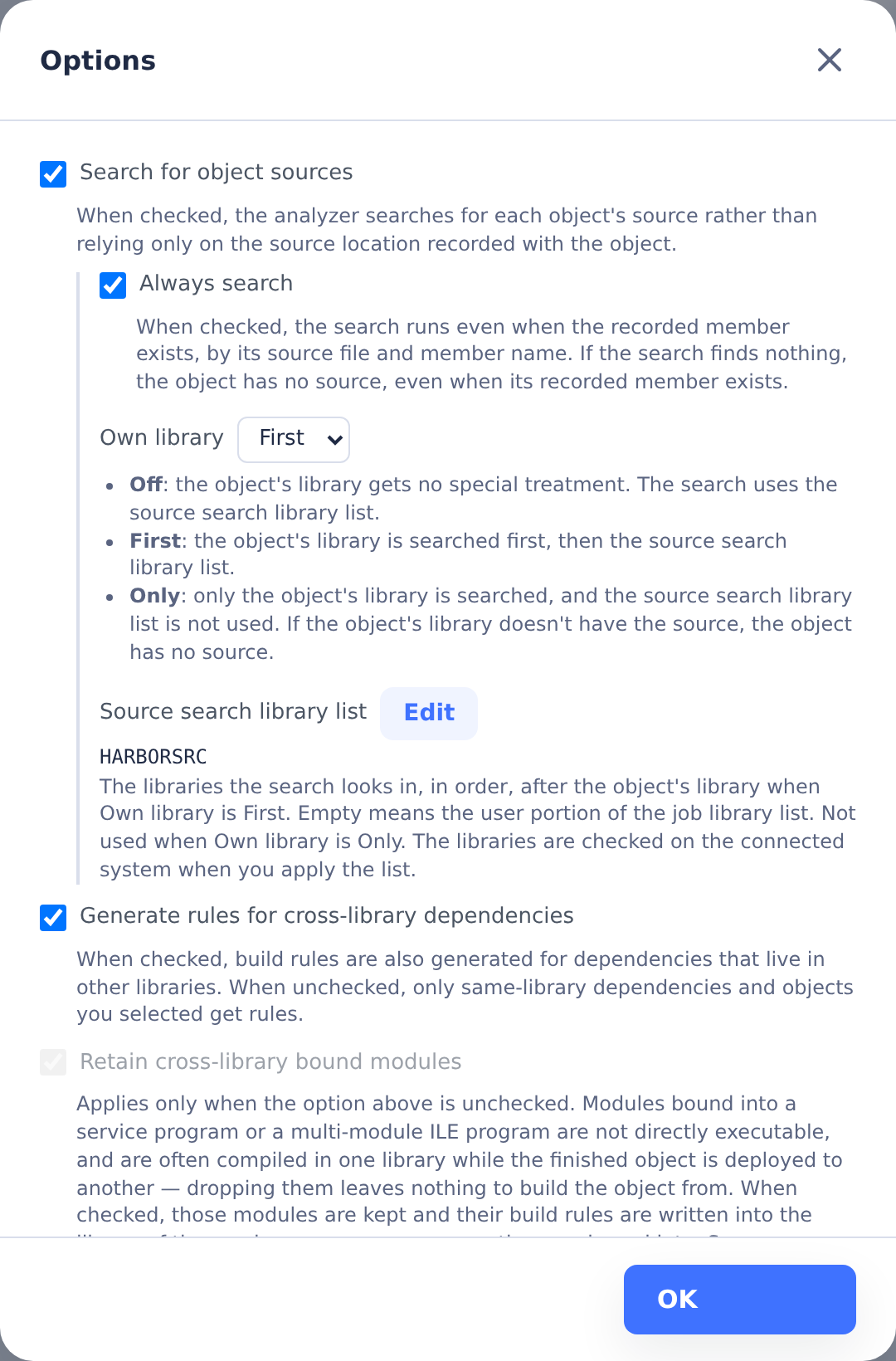
Options
- Require sources for files (on by default) — when off, sourceless
*FILEobjects are dropped instead of blocking rule generation: a sourceless file you selected is skipped, and a sourceless file dependency is removed from the dependent object so the dependent still builds. - Allow missing file dependencies (off by default) — downgrades missing file-dependency errors to warnings.
- Search for object sources (off by default) — lets
objxsearch the system for source members rather than only using locations stored on the object. The source search settings under it decide when the search runs and where it looks (see Source search settings below). - Generate rules for cross-library dependencies (on by default) — controls how object dependencies that cross library boundaries are handled. When on, every cross-library dep is fully resolved: rules for the dep go into its own library's
Rules.mk, and the parent rule references it via a library-qualified order-only prereq (e.g.util/usrv.srvpgm). When off, cross-library object deps are dropped unless the dep itself is part of your selection — a directly-selected cross-library object still gets its rules and prereqs generated. Source prerequisites are always included regardless of this option. - Retain cross-library bound modules (on by default) — applies when cross-library dependency rules are off. Keeps modules bound into a service program or multi-module ILE program, with their rules written into the finished object's library.
- Replace existing Rules.mk content (off by default) — when off, newly generated rules are merged into any existing
Rules.mkfiles: rules for matching targets are replaced and unrelated existing rules are preserved. When on, each affectedRules.mkis overwritten with only the newly generated rules.
Source search settings
Three settings under Search for object sources control the search for an object's own source. They need Search for object sources on: while it's off they're disabled and have no effect.
- Always search (off by default) — searches for every recorded source member, even one that exists, by the same source file and member name. The search's result is the object's only source, and the recorded member is never used as a fallback. Without Always search, a recorded member that exists is used as is, and the search runs only when it's missing.
- Own library (Off by default) — how the search treats the library of the object being analyzed:
- Off — the object's library gets no special treatment. The search uses the source search library list, or the user portion of the job library list when that list is empty.
- First — the object's library is searched first, even when the source search library list doesn't include it. Then the search uses the source search library list, or the user portion of the job library list when that list is empty.
- Only — only the object's library is searched. The source search library list has no effect and can't be edited, and the job library list isn't searched either. If the object's library doesn't have the source, the object has no source.
- Source search library list (empty by default) — the libraries the search looks in, in order, after the object's library when Own library is First. An empty list means the user portion of the job library list. Edit opens the same library list dialog as Library List. When you apply the list, its libraries are checked on the connected system, and a library that isn't found keeps the dialog open with an error.
With Search for object sources on, the settings apply to every search for an object's own source:
- a recorded source member that's missing, or every recorded member with Always search;
- a physical or logical file that records no source;
- the source of an SQL procedure, function or trigger.
They also apply to the files, service programs and modules reached as dependencies, as if you had selected them. For a module bound into a program or service program, the object's library is the library of that program or service program.
The settings don't affect how objects are located. Copy members and includes, and the files, modules, service programs and binding directories an object depends on, are always found on the main library list (Library List).
With Always search on, an object whose source the search doesn't find has no source, even when its recorded member exists. With Own library set to Off and an empty source search library list, that includes an object whose recorded member is in a library outside the user portion of the job library list: the search doesn't look in that library.
For example, if programs in HARBOR were last compiled from development copies in HARBORDEV, their recorded members are in HARBORDEV. With Always search on and Own library set to First, the search looks in HARBOR first, so the generated rules use the source in HARBOR wherever HARBOR has it.
Always search and Own library are saved with the other options. The source search library list is saved on the server per host, like Library List. A profile saves all three, including its own source search library list, and IBM i Import automations that run the profile use them. If a library in the list no longer exists when an analysis that uses the list runs, the analysis fails and every object reports Source search library "LIB" not found. for that library.
3. Analyze
Progress streams live with per-object status (OK, warning, error). The tool runs objx in batches to collect object metadata, emits Rules.mk for each affected library, and validates that every source referenced by a generated rule actually exists on the target repository and branch (via the Git provider).
Rule generation errors are non-blocking: affected targets are skipped and the remaining rules are still generated.
4. Review & Generate
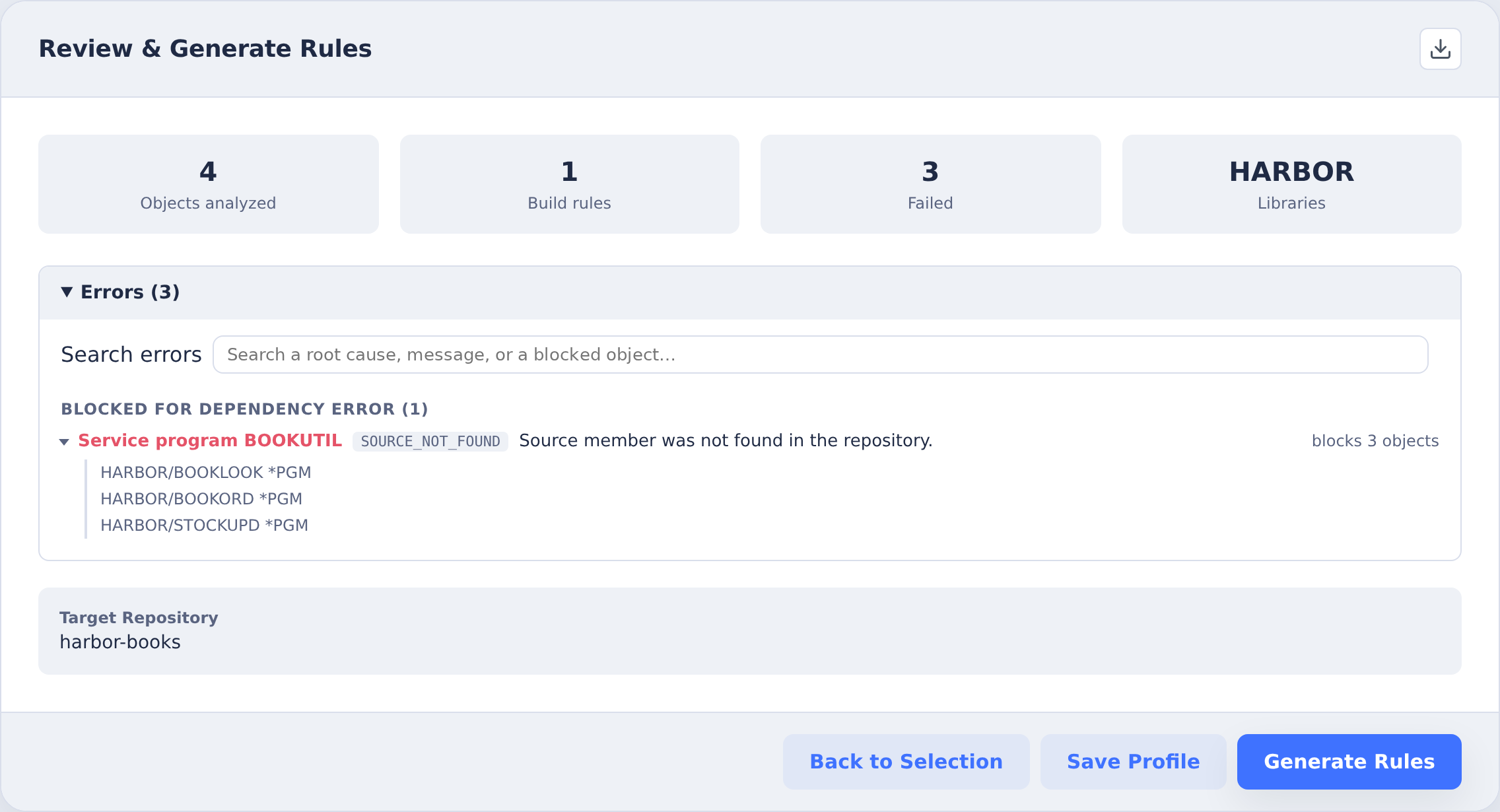
A summary shows objects analyzed, rules emitted, failed, and skipped counts, and the list of libraries covered. Errors, warnings, and skipped objects are listed in collapsible sections. The download icon exports a .tar.gz archive of the analysis artifacts for inspection.
Errors are grouped by root cause. One broken dependency puts an error on every object that depends on it, so a widely bound service program can account for hundreds of rows that are all the same failure. Blocked for dependency error lists one row per broken dependency — named with its error code and the number of objects it blocks — which expands to the library-qualified affected objects. Object errors lists errors on the object itself, unchanged. A search box filters both, matching root causes and the objects they block, so you can still find a specific object by name.
Click Generate Rules to create a task. The generated Rules.mk files (and any .bnddir files) are injected into the repository inside the task container under {library}/ directories; analysis artifacts are also placed at /tmp/ibmi-import/ for the agent and for later inspection. An AI agent writes a summary and commit message. From there, use the standard approval flow to commit and push.
Notes on the Resulting Task
Build rules tasks behave like Import Sources tasks:
- Not resubmittable — the injected files are specific to this analysis session.
- Sync to IBM i surfaces (Approve dialog section and task page button) are hidden. The output is Git-side build configuration, not edits to push back to IBM i.
- Otherwise, review, approve, and push through the normal task UI.