Home and Dashboards
Home, the first tab in Portal, shows a dashboard: tiles for the reports and applications you pin there. You can keep several named dashboards in each workspace, for example one for sales and one for stock, and choose which one Home opens with.
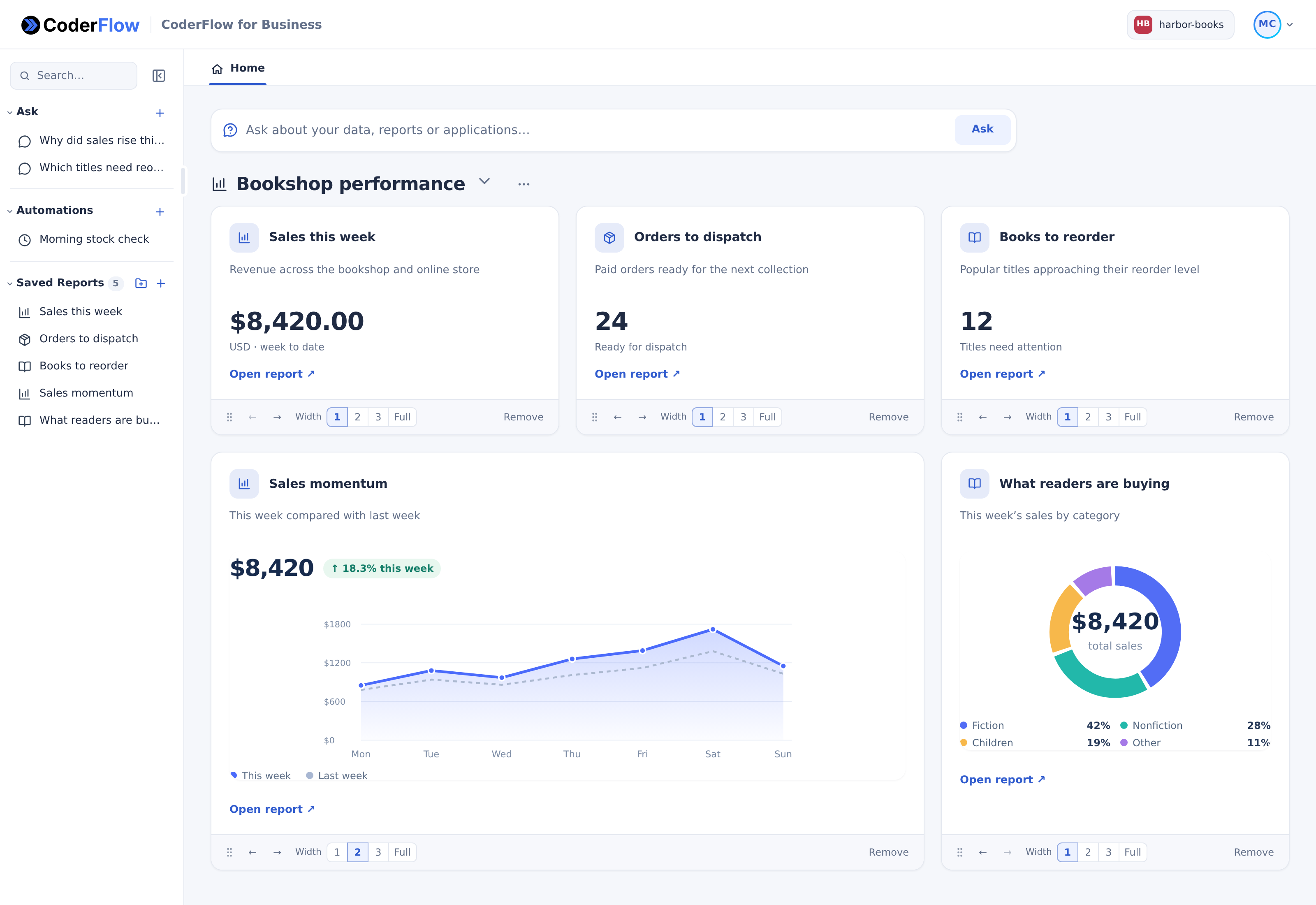
The Ask bar at the top of Home starts a question. See Asking Questions.
Dashboards
Your first dashboard is called My Dashboard. The dashboard picker at the top of Home switches between dashboards; the default one is marked (default). The ⋯ (Dashboard actions) menu beside it has:
- New dashboard: enter a name (up to 100 characters), pick an icon and a color for the picker, and click Create.
- Edit dashboard: change the current dashboard's name or icon, and click Save.
- Make default: Home opens with this dashboard when you open Portal or switch workspace. On the default dashboard, the item reads Default dashboard and is disabled.
- Delete dashboard: removes the dashboard and its arrangement of tiles, after you confirm. Your reports and applications are kept. If it was your default, the first remaining dashboard becomes the default. You can't delete your only dashboard.
You can have up to 20 dashboards in a workspace. Dashboards are personal: nobody else sees them.
The dashboard you pick stays selected while you move around Portal. When you reload the page or switch workspace, Home shows your default dashboard again.
Pin reports and applications
Pins go to the dashboard currently selected on Home. A report or application can be on several dashboards, each with its own position and width.
- Report: click Pin to dashboard name on the report, for example Pin to My Dashboard. Click Unpin from dashboard name to take it off.
- Application: click Pin to dashboard name on the open application, or Unpin from dashboard name, as for a report.
- From the sidebar: click the pin icon on a report's or application's row. A filled pin means it is on the current dashboard; click it to unpin.
- By dragging: drag a report or application from the sidebar onto Home and drop it where the marker shows. If another tab is open, hold the dragged item over the Home tab to switch to Home, or drop it on the tab to add it at the end.
Drafts can't be pinned until you use a version. A dashboard holds up to 30 tiles, unavailable tiles included.
When a dashboard is empty, Home says No pinned items yet and how to add some. With no reports yet, it offers Create a report.
Tiles
Each report's tile is designed by the report assistant together with the report. To change it, ask in the report's conversation, for example Use a short summary instead of a number on the tile, and review it under Home tile preview. See Reports.
A report tile is one of:
- a summary: the report's icon, title and description;
- a KPI: one number with a label, such as a total or a count. It shows No data when there is no value;
- a custom tile: a chart, a table, several numbers, or another compact view.
Every report tile has Open report ↗. A report someone shared with you says Shared by and the owner's name.
An application tile says whether it is an IBM i application or a Web application, and whether it is open, with Open application ↗.
Tiles run their queries with your own login when a dashboard is first shown and when you switch dashboard. Going to another tab and back keeps the tiles as they were. If you leave while tiles are still loading, loading stops and starts again when you come back. Click Refresh dashboard, the circular arrows beside the dashboard's actions menu, to run the queries again; pointing at it shows when the tiles were loaded. The tiles also load again when you add, move, resize or remove one, or when a pinned report changes. There is no automatic refresh. Data from outside IBM i can be reused for a while (five minutes by default) before it is read again, as in reports.
If a pinned report is deleted, its tile goes from every dashboard.
If you can no longer open a pinned item, for example a report that is no longer shared with you, or an application IT removed or no longer offers you, its tile stays in its place as Unavailable. It shows nothing about the item, not even its name. It still counts toward the 30 tiles. Click Remove at the tile's foot to take it off, or Remove unavailable to remove every unavailable tile on the dashboard. If the item becomes available to you again before you remove it, its tile comes back.
If the list of applications couldn't be loaded, application tiles say so instead; reload the page to try again.
Arrange and resize tiles
Each tile has a bar of controls at its foot:
- Drag the grip, or the tile itself, to move it. A marker shows where it will go. Escape cancels.
- ← and → move it one place earlier or later.
- Width: 1, 2 or 3 columns, or Full to fill the row. You can also drag the tile's right edge; it snaps to these widths.
- Remove takes the tile off this dashboard at once. The report or application isn't deleted.
Home shows three columns, up to six on very wide windows, two on narrow ones and one on a phone. A tile never gets wider than the columns available, and its saved width comes back on a wider window.
Changes are saved as you make them. If a save fails, Portal says Dashboard layout was not saved. Try again.
Pin to the IT dashboard
If you also work in the CoderFlow Web UI, you can show report tiles above your task board there.
- Open a report and click Pin to IT dashboard.
- In the CoderFlow Web UI, the tile appears under Portal tiles, above the task list in the Tasks view.
Pin to IT dashboard is shown to people who can view tasks in some environment (tasks:view), on reports with a version in use, your own or shared with you. Unpin from IT dashboard removes the tile.
- You can pin up to 12 tiles, from all your workspaces together.
- The IT dashboard's tiles are yours alone, separate from your Portal dashboards. They run their queries with your own data access.
- On the IT dashboard, Add Portal tile (or Add tile, once there is a tile) lists your reports to add or remove, and Open Portal opens Portal.
- Each tile there has Width (1, 2, 3 or Full), arrows to move it, a refresh button to run its query again, Unpin, and Open report ↗, which opens the report in Portal.
- Tiles you can no longer open still count toward the 12. Remove unavailable removes them.
Ask CoderFlow
Ask CoderFlow reads, in the Full edition, your reports and applications in Portal and can link you to a report's Pin to IT dashboard or Unpin from IT dashboard button, where you use it yourself. It doesn't read or change your dashboards. Arranging dashboards and their tiles is rarely done, so Ask explains it from this page.