Working with Objectives
Objectives are where you plan, draft, and refine your requirements before executing work. They provide a permanent space to develop your ideas—from initial rough concepts through to well-defined specifications ready for AI agents to implement.
When to Use Objectives
For simple, straightforward tasks where you know exactly what needs to be done, you can create and launch a task directly. But objectives become valuable when:
- Requirements need refinement: You have a general idea but need to work through the specifics
- Work is complex: The task benefits from being broken down into smaller pieces
- You expect iteration: You'll likely need multiple attempts to get the implementation right
- You want history: You want to track how requirements evolved and compare different approaches
Think of objectives as living documents that grow more precise over time, informed by the results of tasks launched from them.
The Objective Tree
Objectives are hierarchical. A top-level objective can contain sub-objectives, which can contain their own sub-objectives, and so on. The home page displays this structure as an interactive tree view.
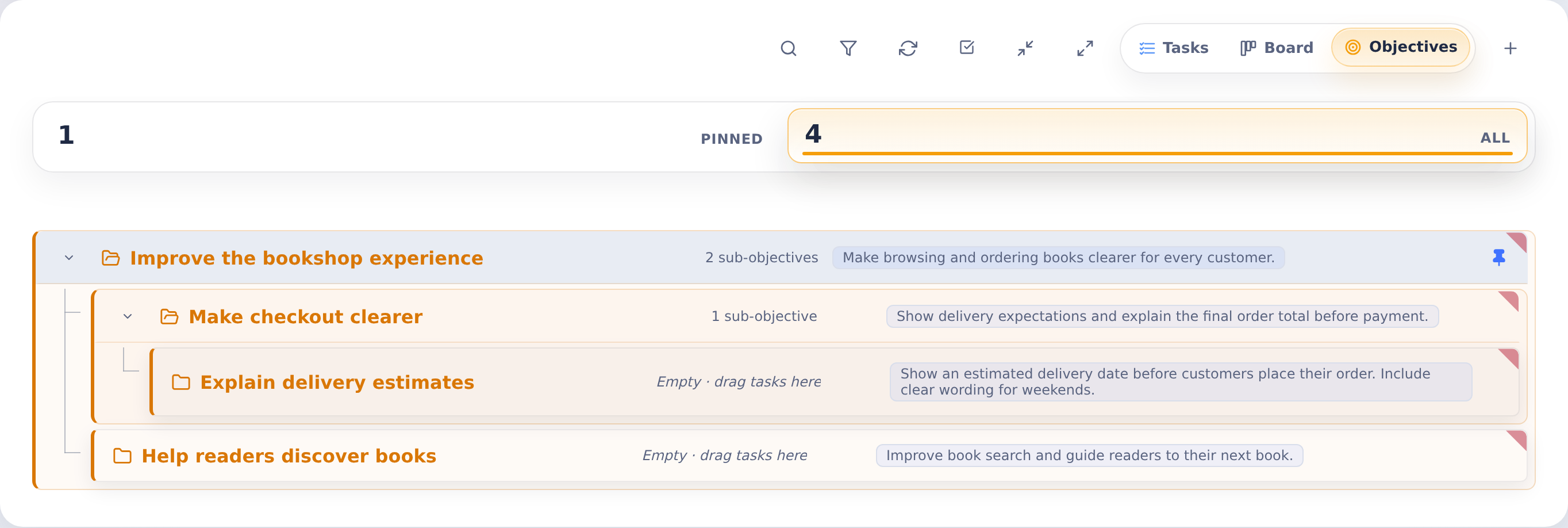
This hierarchy lets you:
- Break down large initiatives: Decompose "Redesign the checkout flow" into discrete pieces like "Update cart summary," "Add payment options," "Improve confirmation page"
- Organize related work: Group objectives by feature area, sprint, or any structure that makes sense for your team
- Track progress visually: See at a glance which parts of a larger initiative have been addressed
Sub-objectives inherit context from their parents, making it easy to understand where each piece fits in the bigger picture.
The tree shows your own objectives by default. To plan alongside teammates, switch the board's scope to My teams or Everyone (see Whose Work the Board Shows). Their objectives then appear with their sub-objectives and the tasks launched from them, marked with the creator's initials, as far as your permissions allow.
Creating Objectives
Create a new objective with the New objective button (+) in the home page's Objectives view. Provide:
- Name: A clear, descriptive title for the work
- Icon (optional): click the folder beside the name to choose an icon shown in its place on the board, on canvases and on the objective's tasks. Type in Search icons to narrow the choices by name or meaning, for example delivery or code
- Environment: Which development environment (Docker image) agents should use
- Instructions: Detailed requirements, context, and any specific guidance for agents
- Attachments: Screenshots, mockups, documentation, or other reference materials
- Agents: Which AI agents can work on this objective (Claude, Codex, Gemini, Bob, Grok, Kimi)
For sub-objectives, select a parent objective to nest under. The new objective appears in the tree beneath its parent.
Launching Tasks
When you're ready to execute work defined in an objective, launch a task from it:
- Open the objective
- Choose which agent(s) to use (you can override the objective's defaults)
- Decide whether to launch immediately or as a staged task
- Launch
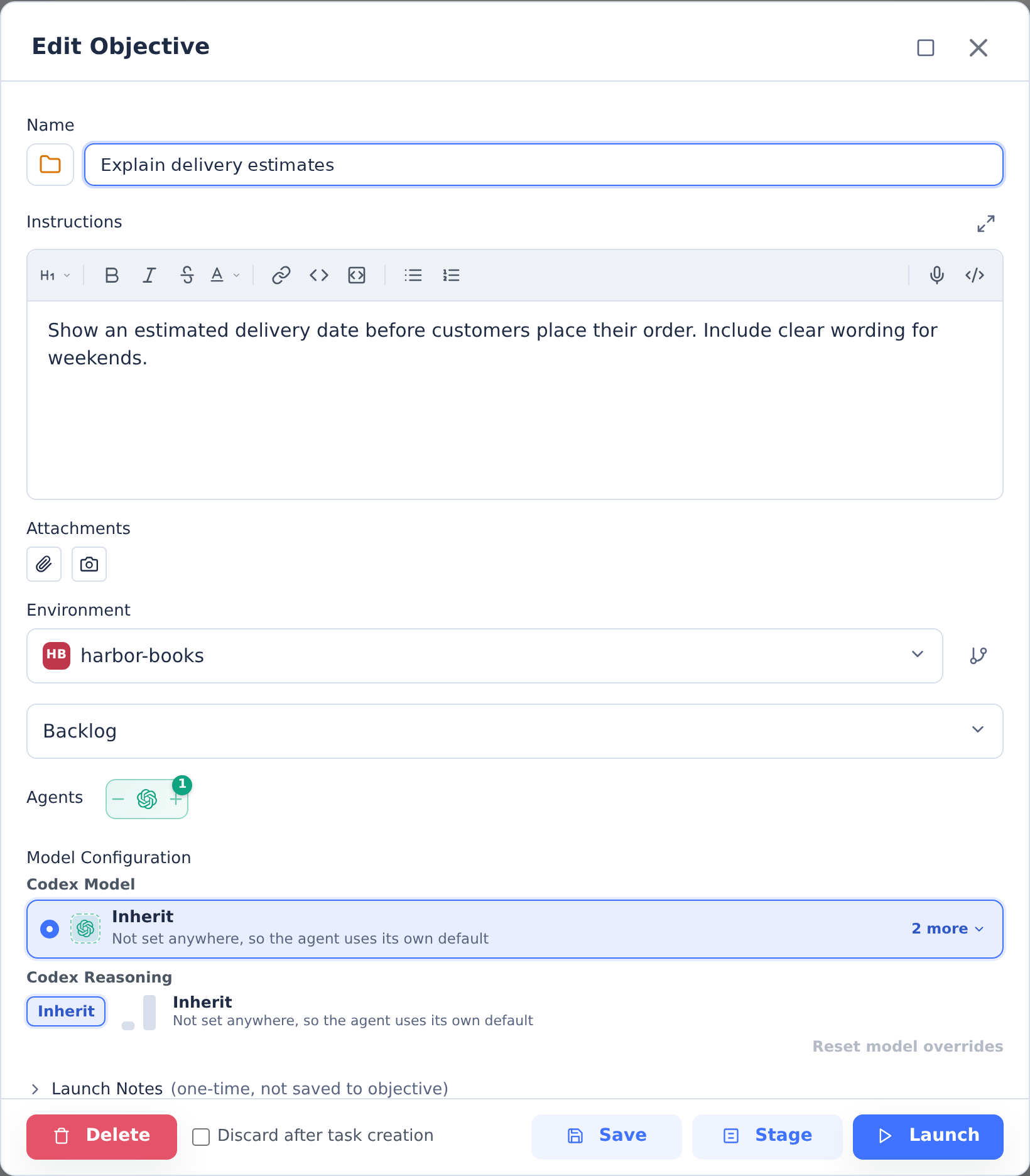
Launching creates a new, independent task that runs in its own container. The objective itself remains unchanged—it's the parent record that tracks all tasks launched from it.
Launching a private objective creates a private task. Shared objectives, including older objectives with no sharing setting, create shared tasks; Portal-sourced launches stay private. This applies to staging, queued launches, every agent in a multi-agent launch, and Discard after task creation. Ordinary launched tasks keep the objective's creator as owner, even when someone else launches them with permission to execute other people's private tasks. Portal-sourced launches belong to the person launching them. The environment's new-task sharing default does not override these objective-launch rules.
Stage and Launch save your edits first. If you close the dialog while they are saving, the save still completes, but nothing is staged or launched.
Discard after task creation deletes the objective once its tasks have been created, so it needs permission to delete the objective: tasks:delete on your own objective, or tasks:delete_any. Without it, the option is turned off and unchecked, with the reason on the option, and launching keeps the objective. Saving never changes the option for the objective's owner. The server checks the same permission before it creates anything: a launch that asks to discard an objective you can't delete is refused, with nothing launched, even when you launch several agents at once.
A launched task's instructions end with an Objective Context section that shows where its objective sits in the hierarchy: its ancestors, sibling objectives and sub-objectives. Anyone who can view the task can read its instructions, so this section names only objectives that everyone who can view the task can also open. For a shared task, that means objectives that are not private and are in the task's environment. For a private task, it means objectives the task's owner can open. Above an objective that is left out, no ancestors are shown. The task's agent can read objectives through objective management under the same rule.
You can launch multiple tasks from the same objective:
- Run the same objective with different agents to compare approaches
- Iterate on requirements by launching new tasks after refining the objective
- Re-attempt work if an earlier task didn't produce satisfactory results
You can also ask Ask CoderFlow to launch a saved objective, or to delete one. It launches with the objective's saved settings, exactly as Launch does (one task per saved agent, with Discard after task creation as its only option), and deletes it as Delete does: its sub-objectives and the tasks launched from it stay. You review and confirm a card first, and the same permissions apply: launching a shared objective needs tasks:execute in its environment, and a private one needs tasks:execute as its owner, or tasks:execute_any; deleting it, or Discard after task creation, needs tasks:delete as its owner, or tasks:delete_any. To change the agents, branches or instructions, or to add launch notes or stage the tasks, use the objective's editor.
The Iterative Workflow
Objectives shine in an iterative workflow:
-
Start with what you know: Create an objective with your initial understanding of the requirements. It doesn't need to be perfect.
-
Launch and observe: Run a task from the objective. Watch how the agent interprets your instructions and what questions or assumptions arise from its work.
-
Learn and refine: Review the results. Often, seeing an agent's attempt reveals gaps or ambiguities in the original requirements. Update the objective with what you learned.
-
Relaunch: Submit another task with the improved requirements. Each iteration brings you closer to the right solution.
This cycle continues until the work meets your expectations. Throughout, the objective serves as your canonical requirements document, improving with each iteration.
Managing Your Work
Pinning
Pin objectives you're actively working on to keep them visible in your default view. As you complete work, unpin objectives to move them out of your active workspace. They remain accessible in the "All" view for future reference.
Pinned is your own list. Pinning a teammate's objective, for example from a team canvas, puts it on your list only. Unpinning an objective also unpins its sub-objectives and the tasks launched from them, but only on your own list: your own items and anything you pinned from others. Teammates' pins are never touched. When an unpin leaves a parent objective with nothing else pinned under it, CoderFlow offers to unpin the parent too, naming only objectives you can open. See Your Own List.
Viewing Task History
Each objective tracks all tasks launched from it. You can review:
- Which tasks have been launched and their outcomes
- How requirements evolved between task attempts
- Which agent produced each result
This history helps you understand what worked, what didn't, and why.
Parent-Child Navigation
Navigate the objective tree to understand context:
- From a sub-objective, see its parent and siblings
- From a parent, see all its children and their status
- Collapse or expand branches to focus on relevant areas
Discussing an Objective
The Comments section of the objective dialog, and the Comments card on a task page, hold a discussion about the item. Anyone who can view the item can comment, including users with the Viewer role.
Comments appear as they arrive. When a teammate adds, edits or deletes a comment, every open copy of that objective or task updates without a reload, whatever the reader's dashboard shows. Someone whose access to the item is removed stops receiving its comments straight away, even on a page that is already open. A half-written comment and the reader's scroll position are kept. When the live connection drops, the comments catch up as soon as it reconnects. A page without a live connection, such as a stand-alone task page in Safari, reloads its comments every 30 seconds while it is visible, and a page whose comments failed to load or catch up retries on the same schedule.
Type @ to mention a teammate. The dropdown lists the people who can view the item, and a mentioned teammate is notified by email and, when they enabled browser notifications, by a desktop notification. Someone who cannot view the item is never notified. See @-Mentions in comments.
Planning Together on a Team Canvas
To plan an objective with your team, open it as a team canvas. Everyone who can see the objective sees the same board: all of its sub-objectives and tasks, whoever created them and whether or not they are pinned, with each card showing who made it. Arranging cards, adding sub-objectives and moving items between them appear for everyone as they happen.
When Someone Else Edits the Same Objective
Saving an objective never silently overwrites a teammate's change. When you save, CoderFlow sends only the fields you changed. If someone else changed a different field in the meantime (for example, they renamed the objective while you edited its instructions), both changes are kept.
If someone changed the same field after you opened the objective, nothing is saved. Moving an objective to another environment counts as changing its branch selections and custom fields, because a move resets them. Attachments are compared file by file: uploading or removing a file that someone else attached or replaced since your dialog listed it is refused too, while other files are simply added. A file attached to a comment on an objective never replaces an existing attachment with the same name; rename the file and try again. The edit dialog says who changed which fields, and your edits stay in the form. Choose one of:
- Reload their version: loads their changes into the form and keeps your edits to fields nobody else changed. For fields you both changed, your unsaved text is shown below the message with a Copy button, so you can merge it by hand and save again.
- Overwrite with mine: saves your edits over theirs.
While the dialog is open, a Changed by … notice appears when someone else saves the objective, whichever scope the board shows (Mine, My teams, or Everyone). You can keep editing, or choose Load their changes. Renaming an objective directly on the board asks the same question when a teammate renamed it first.
If someone deletes the objective while you have it open, the dialog says so. Your edits stay in the form, Copy my draft copies the name and instructions you typed, and Save, Stage, Launch and Delete are turned off. A save that finds the objective gone, or no longer open to you, shows the same notice instead of an error.
The dialog offers only what you are allowed to do. With view-only access, for example the Viewer role or a card on a team canvas you can't change, the actions you can't take are turned off, and a note at the top of the dialog says why. Save needs tasks:change on the objective (tasks:create in its environment for a new one). Stage and Launch save first and then start a task, so they also need tasks:execute (for a private objective, as its owner, or tasks:execute_any). Delete, and Discard after task creation, need tasks:delete on your own objective, or tasks:delete_any. You can still read the objective and comment on it.
Pinning, snoozing, reordering, and moving objectives on the board or Canvas never cause a conflict. Changes made by agents through objective management count as edits by the task's owner, and need the owner's permission: changing the task's objective or a sub-objective needs tasks:change on it, and deleting a sub-objective needs the delete permission, as in the dialog. An agent can change only objectives it can read (see the Objective Context rule above).
Choosing a parent objective you can't open, when you create or move an objective, gets the same "not found" answer as an ID that doesn't exist, so the answer doesn't reveal which objectives exist.
For API and MCP clients, each objective reports a revision number, along with lastEditedBy and lastEditedAt. To have an edit checked, send the revision it is based on: expectedRevision in the body of PATCH /tasks/:id (or the header If-Match: "<revision>"), or the expectedRevision argument of the MCP update_objective tool. Uploads and removals can also name, in attachmentRevisions, the revision of each file as the client listed it (GET /tasks/:id/attachments gives each objective file's revision; use 0 for a name not listed). A file changed since then makes the edit stale. A stale edit fails with 409 and the code stale_objective. The response names the conflicting fields, their current values and who changed them, and gives the current revision; resend with that revision to overwrite. To overwrite a conflicting attachment, also leave attachmentRevisions out or refresh it from GET /tasks/:id/attachments: each file is checked against the revision you list for it, even when expectedRevision is current. Edits sent without a revision are applied as before: the last write wins.
Best Practices
Start broad, then refine: Begin with high-level objectives and break them down as you understand the work better. You don't need the full hierarchy upfront.
Include context: Give agents background on why the work matters, not just what to do. Context helps agents make better decisions when requirements are ambiguous.
Attach visual references: Screenshots, mockups, and examples are often clearer than text descriptions. Agents can interpret images and use them to guide their work.
Review before relaunching: After a task completes, review what worked and what didn't before updating the objective. Targeted refinements are more effective than wholesale rewrites.
Use the tree for organization: Group related objectives under common parents. This makes it easier to find work and understand how pieces relate to each other.