Project Orchestrator
A project orchestrator is a task that coordinates a larger piece of work. It plans the project, delegates research and implementation to child tasks, reviews their results, and brings the accepted changes together for your approval. CoderFlow supplies the orchestration skill and your environment's effective orchestration policy.
Choosing How to Run the Work
| Use | When it fits |
|---|---|
| A normal task | One agent can complete a focused fix, investigation, or feature without coordinating separate workstreams. |
| A multi-agent task group | You want several agents to try the same task independently so you can compare their solutions. |
| A project orchestrator | You want one agent to divide a project into different tasks, manage dependencies and reviews, and prepare the combined result in phases. |
The orchestrator itself uses one agent. Its children are separate CoderFlow tasks with their own workspaces, results, and reviews.
Starting a Project Orchestrator
Project orchestration requires CoderFlow Full, the tasks:create permission in the selected environment, and Task orchestration turned on. The server's MCP endpoint must also be enabled. An orchestrator must be a normal task with a single agent, rather than a template task or multi-agent group.
- Open New Task and select the environment.
- Choose Manual prompt, write the project's scope, constraints, and acceptance criteria, and select one agent. Templates and multiple agents are refused while this option is on.
- Open Quick Actions → Run as project orchestrator. This item appears only in Full edition when both the environment's Task orchestration and the server's MCP endpoint are on.
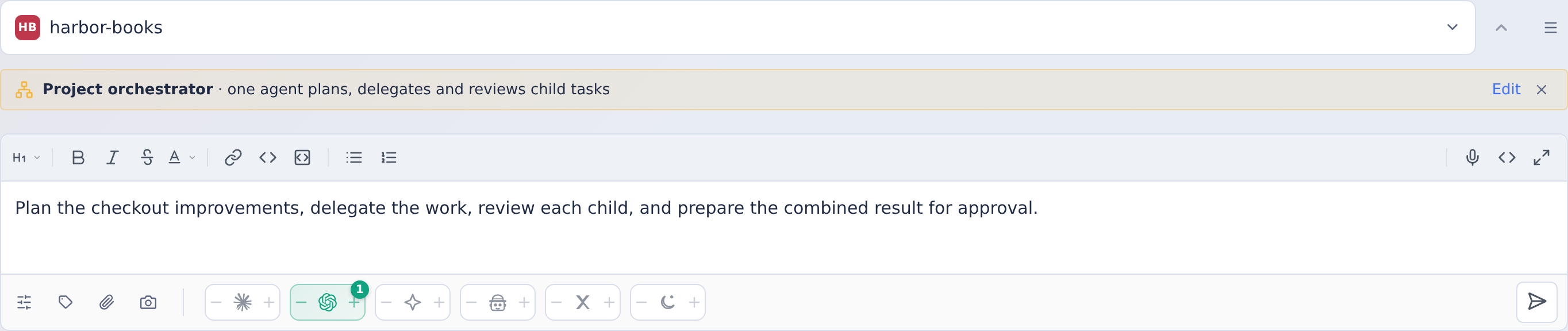
- Check the Project orchestrator chip. Edit explains the option and shows the policy state: Product default, Inherited from server, or Customized. Without permission to view the policy, it shows Set by your administrators. Users with permission to edit the policy also get a link to the environment settings. The chip's × reset button turns orchestration off for this submission. Where the environment allows child approval, Edit also offers Land this project through: Environment setting (the default, which names the environment's choice), Pull requests or CoderFlow approval. A choice other than the environment setting applies to this project only, and the chip shows it. Where child approval is off, the dialog says the orchestrator brings its children's work into its own task for one approval instead.
- Click Launch Task.
Choosing Run as project orchestrator again opens the same Edit dialog. The option also applies when you choose Stage Task or Launch in Terminal. It resets after a successful submission and when you switch to an environment where orchestration is unavailable. In the Edit dialog, Run as a normal task turns it off; Done keeps it selected.

The dashboard tile and task page show an Orchestrator marker. The marker identifies the task's role; a task name alone does not enable orchestration. You can continue the orchestrator with follow-up instructions as you would a normal task.

MCP clients can start the same workflow with create_task and role: "orchestrator".
What the Orchestrator Does
The policy controls planning, child agents, review settings, and approval checkpoints. With the product default, the orchestrator:
- Writes a plan and ledger. It records scope, phases, acceptance criteria, decisions, child task IDs, reviews, checks, and landing status in
docs/plans/<project-slug>/PLAN.mdin the project's primary repository. - Launches child tasks. Each child gets a defined area of work and focused checks. Independent children can run in parallel; dependent work waits for its prerequisites. Children leave their changes uncommitted for CoderFlow approval.
- Reviews and checks the work. It uses two different reviewer providers when available, or one when only one is configured. Review loops send feedback back to the child. Reviewers test security and permission behavior directly instead of relying on the child's description, and each kind of defect a review finds is carried into later children's instructions. The orchestrator also inspects the result, including final polish, and checks the combined changes before presenting a phase for approval.
- Prepares a phase for approval. It uses the landing flow below, records the outcome, and tells you what action remains. Design disagreements, repeated review failures, and access or task limits are reasons to ask for your input.
Automatic review does not run on the orchestrator itself. Automatic judging, review loops, and automatic verification reviews are disabled for that task. Its children retain normal review behavior. You can still request an explicit single review of the orchestrator.
Landing and Approval
The default policy prefers a project branch when the environment allows Approve children into project branches. The orchestrator approves accepted children into a project/ branch and launches later children on that branch. How the project branch lands depends on the environment's Land projects through setting, or on the choice made for the project at launch:
- Pull requests (the default): at each phase checkpoint, the orchestrator opens or reuses a pull request for each repository with changes. You review and merge the PRs; opening them does not merge the work.
- CoderFlow approval: when the work has landed on the project branch, the orchestrator stages it in its own workspace, beside its plan, and asks you to approve the orchestrator task. The task's changed files show the whole project. Approval commits and pushes it to the base as one commit, or as a merge commit if the policy asks for one. If more work lands on the project branch after staging, approval is refused until the orchestrator stages again, so you approve what you reviewed. For a protected base, see Protected branches. The project branch stays on the remote after landing unless you check Delete the project branch after landing when approving, or click Delete Project Branch on the task's page later.
The setting, or the choice made at launch, decides how the project lands, ahead of the orchestration policy, a plan or your instructions, and the orchestrator's tools enforce it. If your instructions ask for the other flow, the orchestrator says so in its next reply. To land one project differently from the environment, choose the flow when you launch it.
See MCP child approval and pull requests for the required permissions and branch restrictions, and Landing a project through approval for how staging works.
On IBM i, when the environment's Build connection has Project Builds on, the orchestrator also builds the project branch's accepted work into a project build, a library you can test with Open in the orchestrator's Project builds section. A phase isn't approved, by pull request or by CoderFlow approval, until a published, current project build of the exact commit exists.
When child approval is unavailable, the default policy uses integration: the orchestrator applies the accepted child patches in its own workspace and checks the combined result. It leaves those changes uncommitted and asks you to approve the orchestrator task once per phase. The child changes are included in that approval, so they do not need separate approvals.
For suggestions from completed work, see Retrospectives and the environment's Lessons tab. The orchestrator's retrospective also draws on follow-ups and review findings from every other task in the project that is visible to the same people as the orchestrator task. This applies whether it starts after your approval under the environment's setting or through Run retrospective on the orchestrator task. Children it approved do not get their own automatic retrospective; Run retrospective on an eligible child still works. If the orchestrator's session includes updates about other tasks with different viewers, CoderFlow uses the orchestrator task's recorded activity instead.
Reviewing children and base syncs
Child reviews use the commit the current patch was based on, even if the launch branch has advanced. Pulling or refreshing outside a new turn updates that base; an older turn checkpoint cannot override it. Each variant gets a separate checkout. Older results without a usable base record explicitly identify a branch-tip fallback; an unavailable checkpoint does not prevent review when the current patch still records a usable base. See which code the judge reviews.
Once the root has a recorded project branch, judges also inspect its current landing tip separately. This includes first-wave children originally launched on main: they can be checked against sibling work that has since landed on the project branch. Recommendations separate Own changes and Integration with the current landing branch. Unchanged repositories remain available for combined tests while sharing one landing/integration checkout. Findings marked [integration-only] belong in the orchestrator's integration follow-up; they should not be mistaken for defects reproduced on the child's pinned base. The recorded landing SHA is a snapshot at review preparation, so the orchestrator must still check for later movement before approval. A project branch that has not been created yet is reported as unavailable, not as a successful integration check. If an ancestor task was deleted, the child can still receive its pinned own-change review; the prompt reports integration as unavailable because the landing branch cannot be resolved.
For approve_task with syncBase: true, launch the sync child on the current project tip, merge the project's base with git merge --no-commit --no-ff, resolve and stage conflicts, and leave MERGE_HEAD present. The reviewer receives the resolved tree, the incoming base, and the difference between the resolved tree and Git's automatic merge. It reviews those resolutions and combined test results without re-reviewing all incoming base changes. An already-existing base defect is informational and does not fail this review. An ordinary sibling/project merge is not automatically classified as a base sync.
This separation does not change approval protections, comparison/blinding rules, loser exclusion, or the review loop's pull behavior. Integration findings still use the existing task-requirement and verdict rules; there is no separate automatic integration pass/fail gate.
Following Progress and Notifications
The orchestrator's task page shows where the project will land and how many agents it has launched:
- A landing chip beside the Orchestrator marker. Lands via pull requests and Lands on approval name the flow in Landing and Approval; integration, when child approval is off, also reads Lands on approval. Once the project is staged for approval, it reads Staged · approve to land. An orchestrator started by another orchestrator shows Lands in parent project, because the root orchestrator decides how the project lands. Hover over or Tab to the chip for the project branch and whether the flow was chosen at launch or is the environment setting. A flow that follows the environment changes if an administrator changes that setting; a flow chosen at launch does not. For pull requests, the tooltip also notes that approving the orchestrator lands only its own changes, such as its plan.
- An agent count in the Child tasks box, for example Child tasks (3) · 8 agents launched: 3 for child tasks, 5 for reviews · 3 active. Each task runs one agent. The heading counts each child once, with its reviews folded in; the count line counts every agent beneath the orchestrator that you can see, including the tasks of nested orchestrators and each reviewer in every review-loop round. In this example, two reviewers over two rounds on one child and one reviewer on another make the 5 reviews. When you can see all of the orchestrator's child tasks, the tooltip shows how many of the environment's allowed child tasks it has used. Reviews do not count toward that limit, and the count line says child limit reached when the orchestrator cannot start more.
Child completions and review outcomes report back to the orchestrator. By default, CoderFlow starts its next turn after the current one has ended so it can continue coordinating the work. The MCP orchestration reference explains child notifications, limits, and delivery holds.
Forking a lead task does not move its children: they keep reporting to the task that created them. To continue in the fork, open the fork's task page: a note says the original task still coordinates its children. Choose Take over…, then select the children the fork should coordinate (Unfinished selects those still working). You can also use Transfer… in the Child tasks box of the original lead. The dialog shows how many of the fork's child slots the selection uses, and the fork then receives their notifications and coordinates them. Finished children you leave behind do not count against its child limit; the Child tasks box shows a lead's slots in use, such as 9/10 slots. A fork of the orchestrator starts as a separate project. Once the project has a project branch, a staged landing or pull requests, its children cannot move to the fork, unless your administrator has turned on joining projects (child_transfer_project_join in the server setup; off by default). With it on, taking over the children makes the fork join that project: the fork approves children into the same project branch, and the original orchestrator still stages the landing for your approval. A fork with a project branch, staged landing or pull requests of its own cannot take them over either way. See Transferring children to another lead.
To let children go so that no task coordinates them, choose Transfer… in the lead's Child tasks box, pick No lead (detach) at the top of the New lead list, select the children, and choose Detach. Each becomes a stand-alone task: it keeps running, but no task receives its notifications or coordinates it, it no longer counts toward the lead's child limit, and it becomes its own project, so its approvals no longer land in the orchestrator's project branch. Its own child tasks stay with it. The lead's Child tasks box lists it under Detached from this task, and its own page names the task that created it. Children can't be detached once their project has a project branch, a staged landing or pull requests, and a detached task can't be put back under a lead.
Your own notifications follow Profile → Notifications → Grouped task runs. Notify each task as it finishes is the default. Choose Notify once when a group or task tree finishes to receive one notification when the orchestrator and its task tree are quiet, including when the orchestrator is waiting for your decision or approval. The notification shows the orchestrator's latest reply and opens its task page. See task-tree notifications.
Ask CoderFlow explains child transfers and detaching from this guide; it does
not transfer or detach children or point to the controls. The Web UI and orchestrator task-token
transfer_child_tasks tool remain available.