Task Templates
Task templates are reusable task definitions with parameters. Define a template once, then run it with different inputs—whether for a single item or hundreds at once.
What Are Templates?
A template combines:
- Instructions: The task description agents will follow
- Parameters: Variables that customize the task for specific inputs (like which file to process)
- Prompts: UI elements that let you select parameter values (file browsers, dropdown lists, etc.)
Templates are configured per environment by administrators. When you run a template, you provide values for its parameters, and the system creates tasks with those values filled in.
Running a Template
- Open Tasks and select your environment in the launcher.
- Open the task template picker and choose a template.
- Use Preview template to read its instructions before launching.
- Fill in the required parameters. Use a parameter’s chooser button when it offers a list.
- Select an agent and use the launch button to create the task.
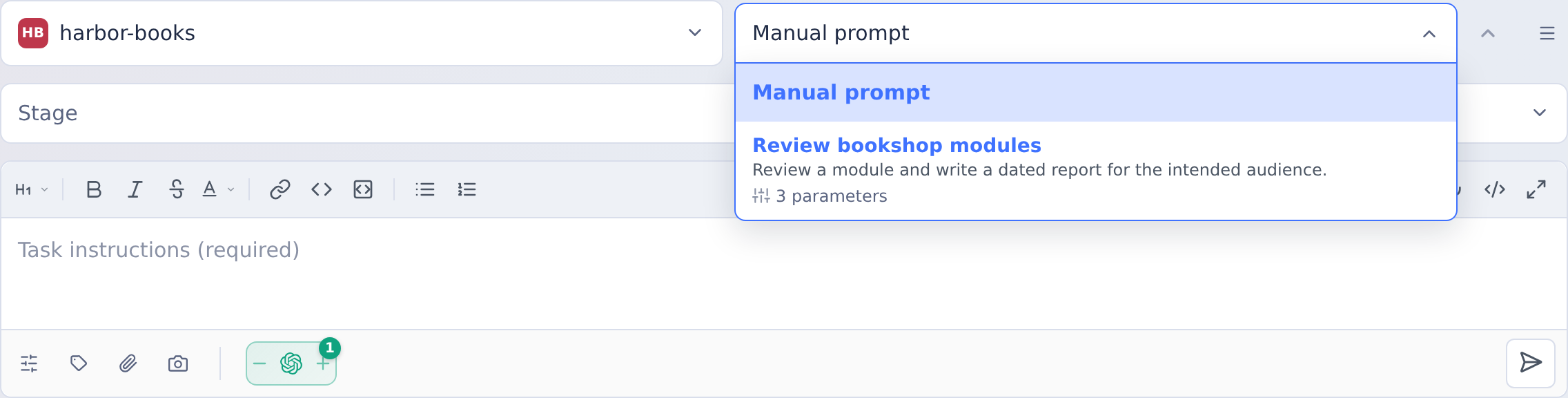
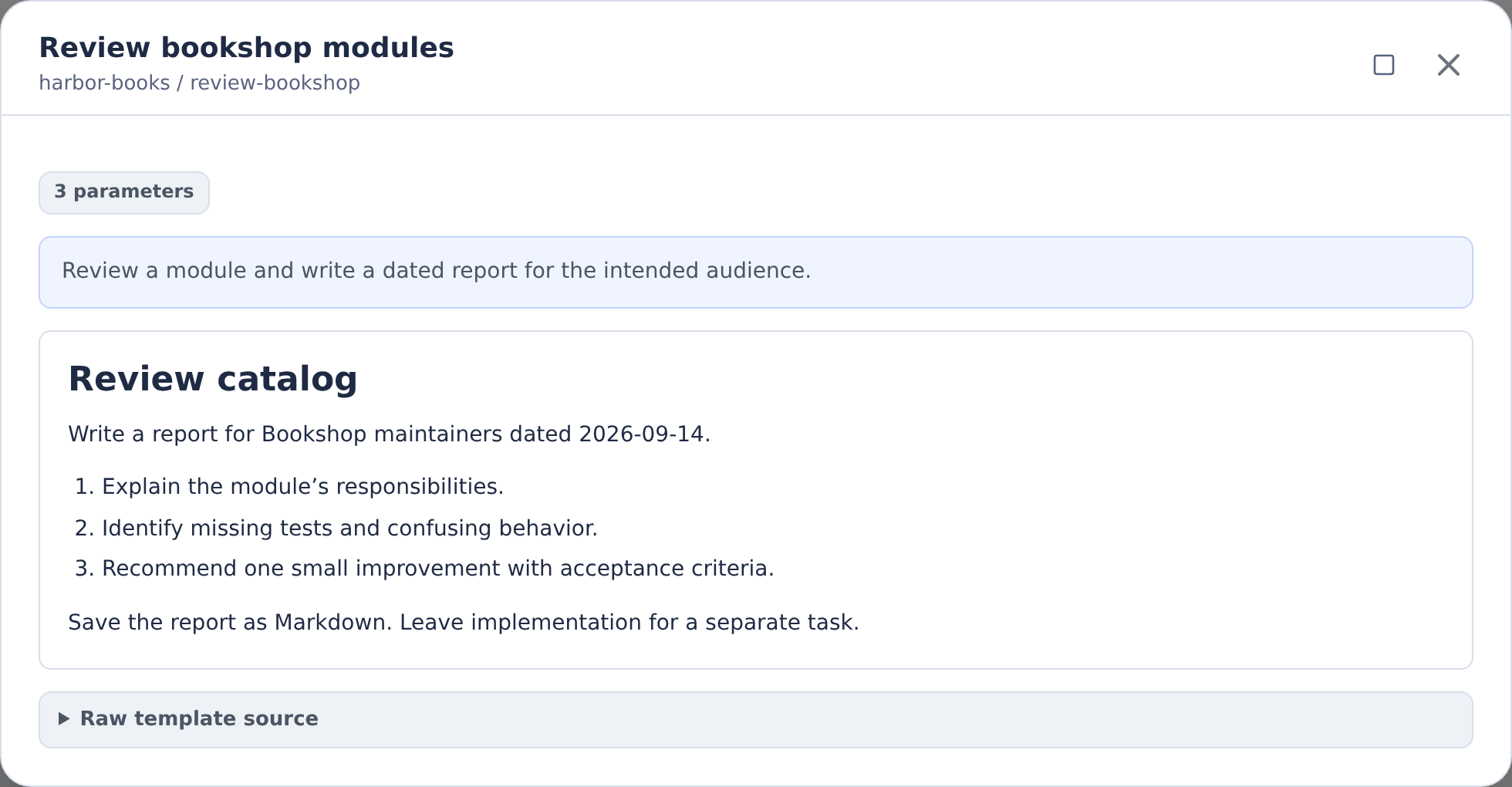
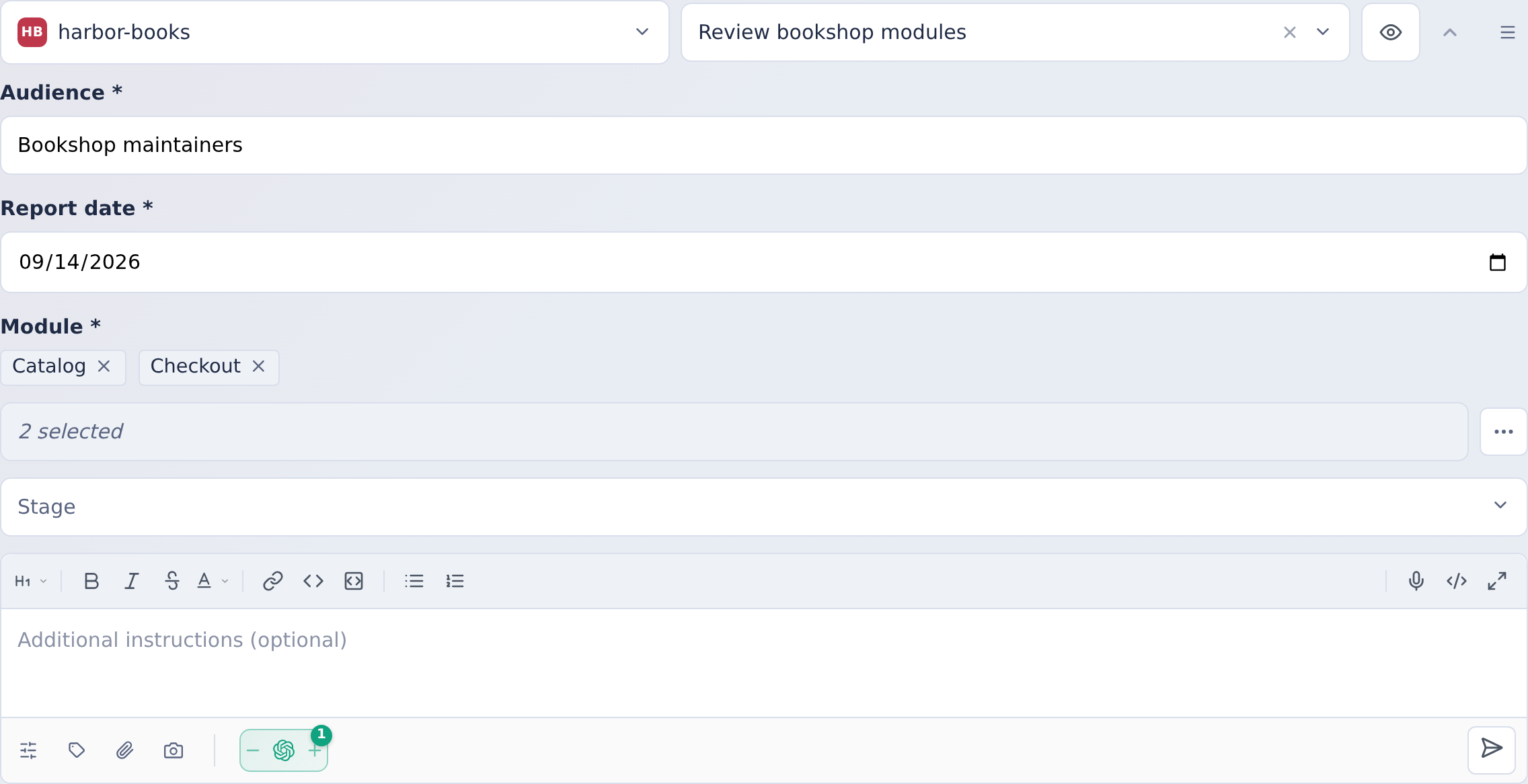
This example combines an audience, a report date and two modules. Select just one module when you want a single task.
The template renders with your parameter values and launches as a normal task. You can monitor progress, review results, and approve changes just like any other task.
Using a Template in a Follow-up
A template can also supply the next instructions for a task that is already underway. For example, you can work through a process one step at a time in the same task, with every step's instructions written the same way each time.
- Open the task's reply box: the quick reply, or the reply box in the Conversation panel.
- Choose Insert template, the clipboard button beside Schedule send. It appears only when the task's environment has templates.
- Choose a template. Templates are grouped as they are in the launcher.
- Check its values. When the task was launched with a value of the same name, such as a ticket key, that value is filled in for you. A template without parameters is inserted as soon as you choose it.
- Choose Insert. The template's text is added below anything already in the reply box.
Nothing is sent until you send the reply, so you can edit the text first. Schedule send, queueing while the agent works and Reply to all work as they do for any reply. The task keeps its own model and settings: inserting a template only adds text.
In a follow-up, a parameter that usually offers a chooser, such as a command's output or a file list, is a text field, and a parameter that accepts several values takes one.
For a process with several steps, administrators can create one template per step, number their titles, and put them in one template group so they are listed together and in order.
Batch Processing
Templates become especially powerful when you need to process many items. Select multiple values for a parameter and run the template against all of them at once—turning weeks of manual work into overnight batch operations.
See Batch Processing for details on multi-select parameters, cartesian products, and workflow best practices.
Common Use Cases
Templates are commonly used for code modernization, refactoring, testing, and documentation tasks.
See Template Examples for specific use cases including RPG modernization, language migration, and batch refactoring patterns.
Configuration
Templates are defined in your environment's configuration. Administrators create templates with:
- Markdown instructions containing parameter placeholders
- Parameter definitions specifying prompts and validation
- Multi-select settings for batch processing
If the agent needs a choice after the task starts, template instructions can ask it to use an interactive reply. Agents receive the format guidance automatically; that guide includes valid question, triage, and ranking examples.
Boolean parameters (type: "boolean") render as checkboxes. A required boolean parameter still allows either checked (true) or unchecked (false) values, so templates can branch on the user's explicit choice.
Date parameters (type: "date") render as date pickers. Their values, including default values, use the YYYY-MM-DD format—for example, 2026-09-02—so the selected date can be inserted directly into a prompt.
When a template with date parameters runs from an automation, each date can instead be set relative to the run date (for example, the first day of the previous month) so the window moves with every scheduled run. See Date Placeholders.
A date parameter is a date-only value with no time of day or time zone, and the template receives it unchanged. Its role comes from your template's wording: it might be a date field, an inclusive end ("through October 31"), or an exclusive cutoff ("before November 1"). CoderFlow adds a short Date parameters section after the rendered template. This section is guidance for the agent; it doesn't enforce a query. It lists each date with the day after it, and asks the agent to:
- keep any comparison the template states itself, such as an exclusive end, a midnight time, a time zone, or a query written out in full;
- where the template asks for inclusive dates and the agent compares timestamps, include the whole end day with
< next day. For example, "created on or before 2026-10-31" becomes< 2026-11-01, not<= 2026-10-31. Query languages such as Jira JQL read a date with no time as midnight at the start of that day; - report, rather than silently change, a query the template spells out with
<=when its wording asks for inclusive dates.
For automation runs, the section also names the automation's time zone. If your template writes its own query for an inclusive end date, compare with < the day after the end date, not <= the end date. The agent can read that day from the Date parameters section.
See Environments in the Administration section for configuration details.